
Use SaneCode from ChatGPT, Claude.ai and other AI apps
Updated November 18, 2026.
What is it? SaneCode’s tools, the same ones Claude uses inside your accounts, available to
any AI app that speaks MCP, at one address: https://mcp.sanecode.co/mcp. You sign in with
your SaneCode account and allow the app once; after that, ChatGPT on your phone, Claude.ai in a
browser, Claude Code on another computer or Cursor can ask SaneCode on your PC “which account
has room left?”, “what happened overnight?”, “if personal runs out, continue in work” or
“tell my work Claude to open a PR”.
Who is it for? People who run several Claude accounts in SaneCode and want to check on them or keep them going from somewhere else: away from the desk, on the phone, or from another AI app when every Claude account is out. The AI app reports and dispatches; Claude in each of your accounts does the work. It needs SaneCode Pro.
How do I turn it on?
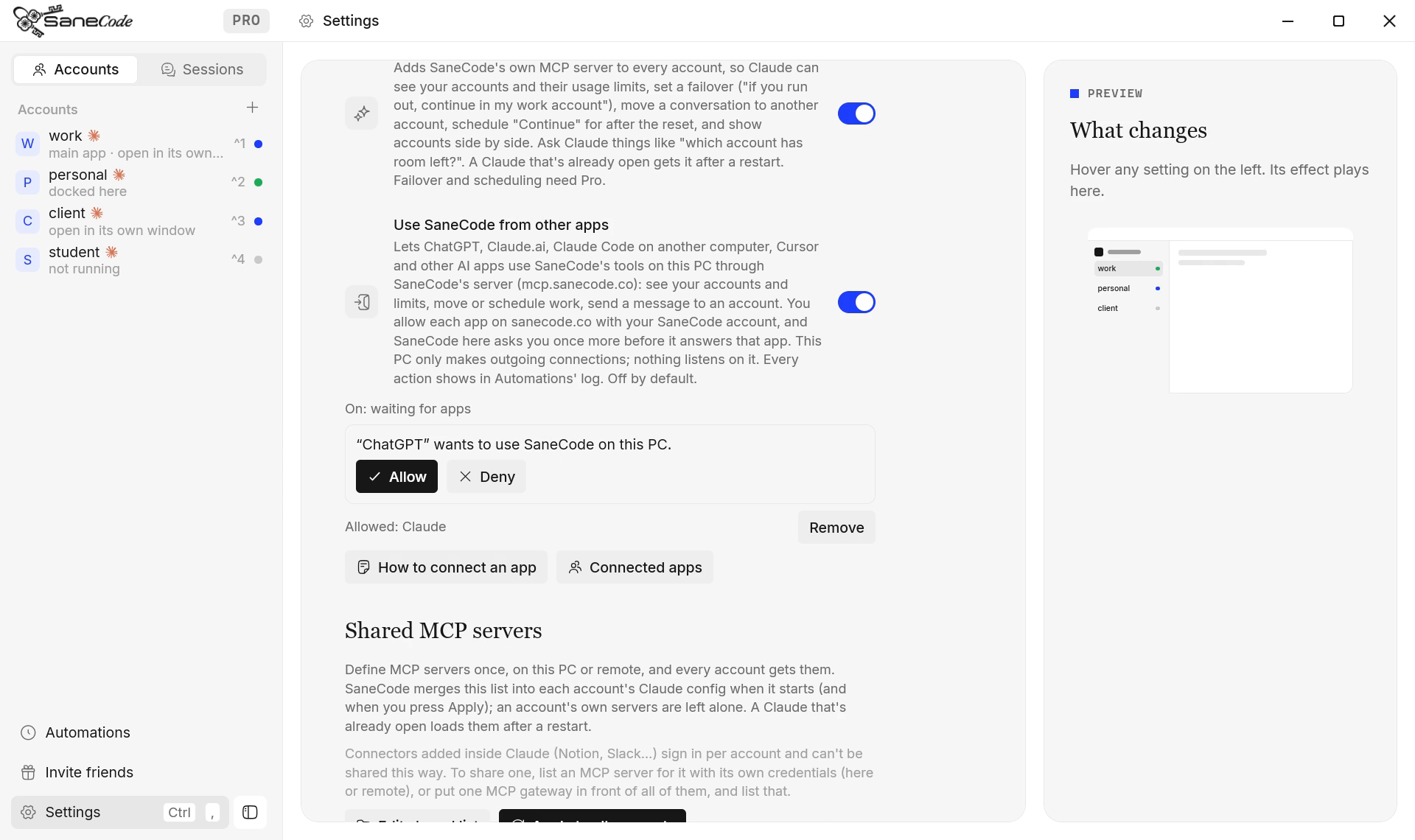
- In SaneCode on your PC: Settings → Tools for Claude → Use SaneCode from other apps. You need to be signed in to SaneCode (Settings → Plan) with Pro. The line under the switch says “On: waiting for apps”.
- In the AI app, add a custom MCP server or connector with the URL
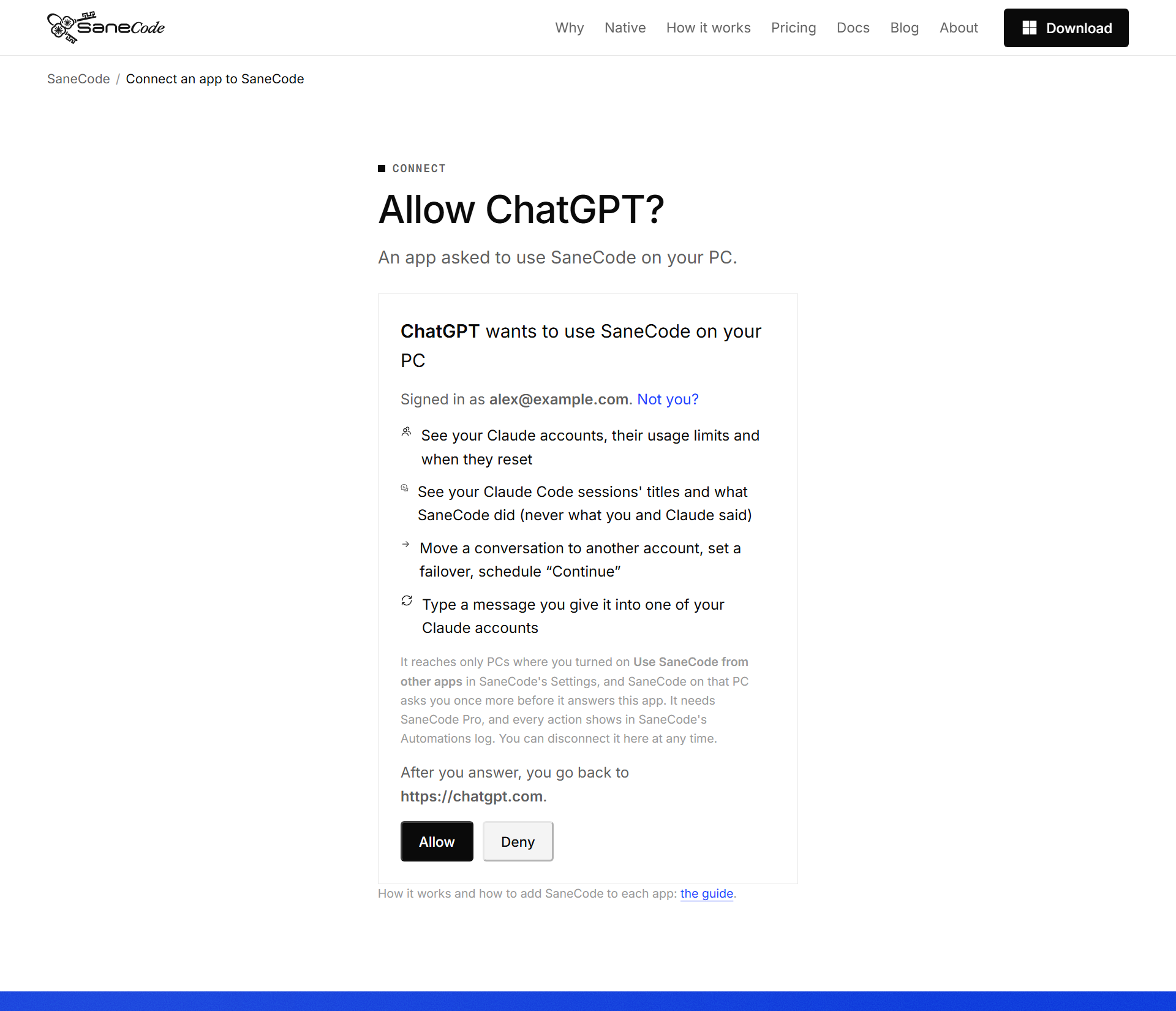
https://mcp.sanecode.co/mcp(steps for each app below). - The app opens sanecode.co: sign in with the same SaneCode account and press Allow.
- Ask the app something about your Claude accounts. The first time, SaneCode on your PC asks too: Settings → Tools for Claude shows ““ChatGPT” wants to use SaneCode on this PC” with Allow and Deny. Allow it, then ask again.
Keep SaneCode open on that PC; the PC may sleep, and the app’s calls wait until SaneCode can answer.
How do I add it to each app?
ChatGPT (web; then also on your phone): turn on developer mode (Settings → Apps & Connectors
→ Advanced settings → Developer mode), then create an app or connector with the URL
https://mcp.sanecode.co/mcp and OAuth, and sign in when ChatGPT asks. In a chat, pick it from
the + menu. OpenAI’s own steps:  Developer mode and MCP apps.
On some ChatGPT plans custom connectors are read-only: then ChatGPT can report (accounts,
limits, sessions, activity, what’s scheduled) but not move or schedule work.
Claude.ai and Claude desktop (any plan; Free allows one custom connector): Settings →
Connectors → Add custom connector, name it SaneCode, URL https://mcp.sanecode.co/mcp, then
connect and Allow. On Team and Enterprise an owner adds it under Organization settings →
Connectors. Anthropic’s steps:  custom connectors using remote MCP.
Inside SaneCode’s own accounts you don’t need this: they have the tools already.
Claude Code (on another computer):
claude mcp add --transport http sanecode https://mcp.sanecode.co/mcpthen /mcp → sanecode → Authenticate.
Cursor (~/.cursor/mcp.json), VS Code (mcp.json, "type": "http"), Windsurf and other
clients that take a remote MCP URL:
{ "mcpServers": { "sanecode": { "url": "https://mcp.sanecode.co/mcp" } } }The client opens the browser for the sign-in the first time.
What can the app do?
The ten tools in Let Claude use SaneCode: see accounts and limits, sessions, overnight activity; set a failover; move a conversation; schedule “Continue”; type your message into an account; show accounts side by side; list and cancel what’s scheduled. From outside your Claude accounts there’s no “this account”, so the app names the account in each request.
Examples
- “Which of my Claude accounts can I use right now?”
- “What did SaneCode do overnight? Did the refactor keep going?”
- “All my accounts are out. When does the first one reset? Schedule ‘continue the migration’ there.”
- “Tell my work Claude to run the tests and open a PR.”
- “Stop the failover, I’m back at my desk.”
Is it secure?
- Your PC accepts no connections. SaneCode on the PC asks SaneCode’s server for work (one outgoing HTTPS request at a time, like a browser); nothing listens on the PC.
- Only PCs you turned on. An app reaches only PCs where Use SaneCode from other apps is on, signed in to the same SaneCode account. Turn it off and calls stop at once.
- Twice, per app. You allow an app on sanecode.co, and SaneCode on your PC asks once more before answering it. An app SaneCode doesn’t recognise is shown as Unverified app with the address it returns to: if you didn’t just add SaneCode to an app yourself, press Deny.
- No commands from outside. A message an app types can’t start with
!,/,#or@, which Claude Code treats as commands. - You can take it back. Sign-in is standard OAuth 2.1 with PKCE; tokens last an hour and renew; see and disconnect apps at sanecode.co/connect.
- Pro is checked twice: by SaneCode’s server on every call, and again by SaneCode on your PC.
- Nothing from your Claude accounts is stored on our server. Calls and answers pass through and aren’t logged. SaneCode never reads what you and Claude said: only titles, folders, times and limit lines.
- Every action is in SaneCode’s Automations log, and a typed message is exactly the text the app sent.
- Treat it like the PC itself. Anyone who can sign in to your SaneCode account and allow an app can type into your Claude accounts on that PC. Use Google sign-in with two-step verification, and turn the switch off on PCs where you don’t need it.
Troubleshooting
- “SaneCode isn’t reachable”: SaneCode isn’t open on the PC, or the switch is off. Turn it on and try again.
- “Needs SaneCode Pro”: the SaneCode account you allowed the app with isn’t Pro. Disconnect it at sanecode.co/connect and connect again with your Pro account.
- The app asks to sign in again: its access was disconnected or unused for 60 days. Allow it again.
- Several PCs: the app’s calls go to whichever of your PCs with the switch on answers first; turn it on only where your Claude accounts run.
Related: Let Claude use SaneCode, Continue after reset, Privacy.
Every Claude account in one Claude desktop, on Windows. Free for 2 accounts.
Written by the founder,  @inxanity06 · Updated 2026-11-18