On this page
- Key takeaways
- Where does Claude keep its MCP servers?
- Are connectors and MCP servers the same thing?
- How do MCP servers that need a key or a sign-in work across accounts?
- Method 1: Copy the config into each account
- Method 2: A sync tool
- Method 3: Claude Code’s user scope and import (terminal)
- Method 4: One MCP gateway for everything
- Method 5: SaneCode’s Shared MCP servers
- Which way to share MCP servers is best? (Comparison)
- What mistakes should you avoid?
- How did we research this?
- FAQ
- The bottom line
By  @inxanity06, founder of SaneCode · Updated
How to share MCP servers across multiple Claude accounts
Short answer: Claude keeps MCP servers per account, so a server you add in one Claude account
isn’t in the others. To use the same servers everywhere, copy the mcpServers block into each
account’s claude_desktop_config.json, keep them in sync with a tool, use Claude Code’s
user scope for the terminal, or let SaneCode do it: its
Shared MCP servers keeps one list and writes it into every account.
This guide is for anyone running two or more Claude accounts on one computer (work and personal, a client’s account, two plans) who doesn’t want to set up the same filesystem, GitHub, database or Notion server again in each one.
Key takeaways
- MCP servers are per account. Each Claude desktop account reads its own
claude_desktop_config.json. A second account started with its own data folder gets “its own auth, its own MCP servers” ( Philipp Stracker).
- Connectors are different from MCP servers you list yourself. Connectors you add in Claude (Notion, Slack, Google Drive) sign in per Anthropic account, so you connect them in each account.
- For Claude Code in a terminal, add a server at the user scope once; every project on your PC
gets it (
 Claude Code docs).
- The import command doesn’t run on Windows.
claude mcp add-from-claude-desktop“only works on macOS and Windows Subsystem for Linux (WSL)”. - Fastest on Windows: SaneCode’s Shared MCP servers: one list, applied to every account, free.
Where does Claude keep its MCP servers?
Claude desktop keeps local MCP servers in a file called claude_desktop_config.json, under a key
named mcpServers. Open it from Claude’s Settings → Developer → Edit Config
( Connect local MCP servers).
Claude reads the file when it starts, so a change needs a restart.
The file lives in the account’s own data folder. One Claude app has one data folder, so it has one set of servers. Run a second account (with a browser profile, a second Claude desktop or SaneCode) and that account starts with an empty list.
Claude Code is separate again. It keeps its servers in ~/.claude.json (on Windows,
%USERPROFILE%\.claude.json), or in a project’s .mcp.json
(Claude Code docs). Both apps use the same mcpServers
shape for local servers, so a definition can be copied between them
( DEV Community).
Are connectors and MCP servers the same thing?
No, and the difference decides what you can share.
- Connectors (Notion, Slack, Google Drive, added in Claude’s Connectors settings) run on
Anthropic’s side and sign in with your Anthropic account. Each Claude account connects its
own; you can’t copy one between accounts. Connect it once per account at
 claude.ai/customize/connectors.
- MCP servers you list yourself in the config use their own credentials (often an API key
in the server’s
env), not your Claude sign-in. They can run on your PC or be remote, on another machine or a hosted service. The same definition works in every account, so these are the ones you can share.
To share something that’s normally a connector, list it as an MCP server with its own key (on your PC or remote), or put one MCP gateway in front of your tools and share the gateway.
How do MCP servers that need a key or a sign-in work across accounts?
It depends on how the server authenticates. The
MCP spec splits it
in two: a local server should “retrieve credentials from the environment”, and a remote (HTTP)
server uses OAuth 2.1, with the client finding the sign-in server through Protected Resource
Metadata and usually registering itself (Dynamic Client Registration).
| Server | How it signs in | Shared across accounts? |
|---|---|---|
| Local, API key | key in the entry’s env |
Yes: same entry, same key |
| Remote, API key | Authorization header |
Yes, through mcp-remote --header |
| Remote, OAuth | browser sign-in by mcp-remote |
Yes: one sign-in, tokens in %USERPROFILE%\.mcp-auth |
| Connector (Customize → Connectors) | your Anthropic account, from Anthropic’s cloud | No: connect in each account |
Claude desktop doesn’t connect to a bare URL from its config file. In the current Windows app
(5.11492), every mcpServers entry must have a command; an entry like
{"type": "http", "url": "…"} is skipped with “Some MCP servers couldn’t be loaded”. Remote
servers go through  mcp-remote, a small bridge Claude starts
with
npx -y mcp-remote <url>:
{
  "mcpServers": {
    "linear": { "command": "npx", "args": ["-y", "mcp-remote", "https://mcp.linear.app/mcp"] }
  }
}
mcp-remote does the OAuth sign-in in your browser and keeps the tokens in .mcp-auth in your
Windows user folder, named by a hash of the URL and headers. Every Claude account on that Windows
user that lists the same URL finds the same tokens, so you sign in once for all of them, and
mcp-remote coordinates refreshes between running copies so a rotating refresh token is used once.
For a header with a space in it (Bearer …), put the value in env: Claude on Windows doesn’t
escape spaces in args (the mcp-remote README’s workaround). If you need a different sign-in per
account (two company workspaces), keep that server in each account’s own config.
Connectors are signed in per account. Anthropic: “Claude connects to your remote MCP server
from Anthropic’s cloud infrastructure, rather than from your local device”
( Claude Help Center),
and the config file is “a separate mechanism”. Connect them in each account.
Method 1: Copy the config into each account
Best for: two accounts and a server list that rarely changes.
- In the first account, open Settings → Developer → Edit Config and copy the whole
mcpServersblock. - In the second account, open the same file and paste the block, keeping any servers already there.
- Restart that Claude.
{
  "mcpServers": {
    "filesystem": {
      "command": "npx",
      "args": ["-y", "@modelcontextprotocol/server-filesystem", "C:\\Users\\you\\Documents"]
    }
  }
}
The catch: the copies drift. Add a server in one account and you have to remember the others.
Don’t link one account’s whole config file to another’s either: the config holds more than MCP
servers, and a write from one Claude lands only in the account it belongs to
( jguillaumesio.com found the same for
Claude Code’s
.claude.json, which also holds the account’s identity).
Method 2: A sync tool
Best for: people who also use Cline, Roo Code or other MCP clients.
 sync-mcp-config keeps one master file and
writes it to Claude Desktop, Claude Code, Cline and Roo Code, with a dry run, backups and restore.
 sync-claude-mcp copies Claude Code’s servers into
Claude Desktop, one way.
The catch: these tools know Claude Desktop’s standard config location, so they update one account. A second account with its own data folder isn’t in their list. Read the code before you let a tool write your config, and back the file up first.
Method 3: Claude Code’s user scope and import (terminal)
Best for: Claude Code in a terminal.
Add a server once at the user scope and every project on your PC has it:
claude mcp add --scope user filesystem -- npx -y @modelcontextprotocol/server-filesystem C:\Users\you\DocumentsTo bring in what you already set up in Claude desktop, Anthropic has an import command:
claude mcp add-from-claude-desktop (add --scope user). Two limits from
Anthropic’s docs: it “only works on macOS and Windows
Subsystem for Linux (WSL)”, and it skips server names with characters other than letters, numbers,
hyphens and underscores.
The catch: this shares servers between your projects, not between Claude accounts in the
desktop app. If you give each account its own Claude Code folder with CLAUDE_CONFIG_DIR, each
folder has its own servers again, and OAuth servers need /mcp to sign in once per folder
(jguillaumesio.com). More in
Claude Code with multiple accounts.
Method 4: One MCP gateway for everything
Best for: many tools, many accounts, or a team.
An MCP gateway is a single MCP server that connects to all your other tools. You add only the gateway to each account, and add or remove tools in the gateway itself. Every account then reaches the same tools through one entry.
The catch: you still add the gateway to each account once, and the gateway holds the credentials for everything behind it, so treat it like a password manager.
Method 5: SaneCode’s Shared MCP servers
Best for: several Claude desktop accounts on Windows, every day.
SaneCode runs the official Claude desktop once per account, and its Shared MCP servers keeps one list for all of them.
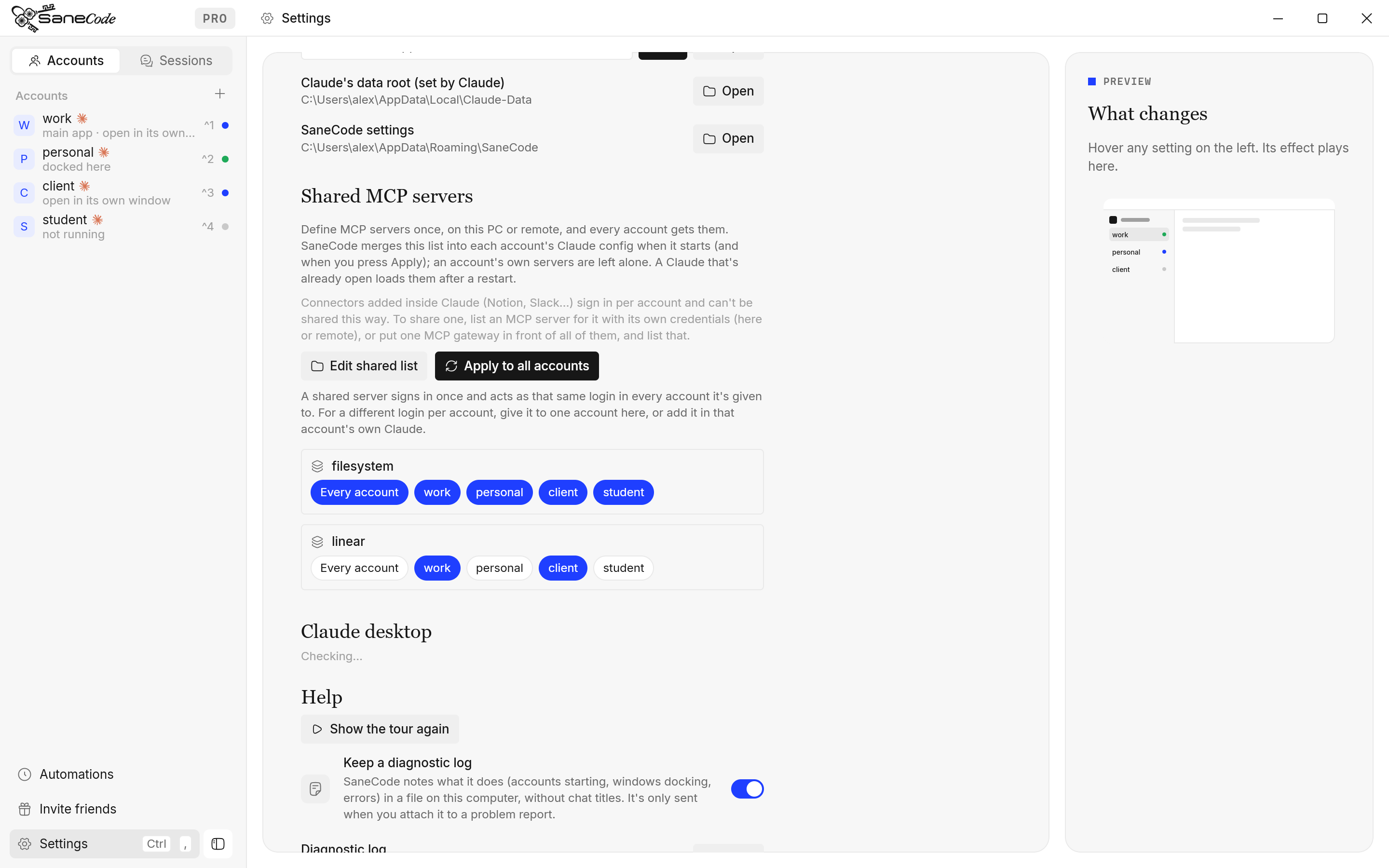
- Open SaneCode’s Settings → Shared MCP servers → Edit shared list and add your servers in the
same
mcpServersformat as Claude’s own config. - Press Apply to all accounts. SaneCode writes them into every account’s
claude_desktop_config.json, and applies the list again each time it starts. - A Claude that’s already open picks them up after a Restart.
Remote servers can be pasted in the shape providers and Claude Code use ("type": "http",
"url", "headers"); SaneCode writes each account the mcp-remote entry Claude desktop needs,
with header values in env. Details per sign-in type: Shared MCP servers.
What it changes, exactly: shared servers are added or updated under their names; servers an account added on its own are left alone; remove a server from the shared list and SaneCode removes it only from the accounts it put it in. It’s in SaneCode’s free version.
Which way to share MCP servers is best? (Comparison)
| Copy by hand | Sync tool | Claude Code user scope | MCP gateway | SaneCode | |
|---|---|---|---|---|---|
| Works for Claude desktop accounts | ✅ | ⚠️ one account | ❌ terminal only | ✅ (add gateway once each) | ✅ |
| Every account updated from one list | ❌ | ⚠️ standard location only | — | ✅ via the gateway | ✅ |
| Keeps an account’s own servers | ✅ | depends on the tool | ✅ | ✅ | ✅ |
| Works on Windows | ✅ | ✅ | ✅ (import needs WSL) | ✅ | ✅ |
| Shares connectors (Notion, Slack…) | ❌ | ❌ | ❌ | ✅ as local servers | ❌ (connect per account) |
| Setup time | 2 min per account | 15 min | 2 min | 30+ min | ~2 min |
| Cost | free | free | free | depends | free |
Best for:
- Two accounts, a few servers: copy by hand.
- Terminal Claude Code only: the user scope.
- Many tools or a team: an MCP gateway (and share the gateway with SaneCode).
- Several Claude desktop accounts on Windows: SaneCode’s Shared MCP servers.
What mistakes should you avoid?
- Expecting connectors to copy over. Notion, Slack and other connectors sign in per Anthropic account. Connect them in each account, or list an MCP server for that tool with its own key.
- Forgetting the restart. Claude reads
claude_desktop_config.jsonwhen it starts. - Linking one account’s whole config to another’s. The file isn’t only MCP servers, and each Claude writes to its own.
- Pasting a remote URL straight into Claude desktop’s config. It’s skipped; wrap it in
npx -y mcp-remote <url>(SaneCode does this for you). - Putting keys in a shared folder others can read. An MCP server’s
envoften holds API keys.
How did we research this?
We read the MCP authorization spec,
mcp-remote’s source and README, the config check inside the
Claude desktop app itself (version 5.11492, Windows), Anthropic’s Claude Code MCP docs and the
MCP guide for local servers,
the third-party guides and tools linked above, in November 2026. We checked each account’s
claude_desktop_config.json on a Windows PC running the current Microsoft Store Claude desktop.
We make SaneCode, so we’ve compared its Shared MCP servers in the same table as the free options.
FAQ
Can I use the same MCP servers in two Claude accounts?
Yes. Each account keeps its own list, so add the servers to each account’s
claude_desktop_config.json, or keep one list and apply it to every account with SaneCode’s
Shared MCP servers.
Where is claude_desktop_config.json?
Open it from Claude’s Settings, then Developer, then Edit Config. Each Claude account has its own copy in its own data folder.
Do connectors like Notion work in every account?
Connectors sign in per Anthropic account, so connect them in each account. An MCP server for the same tool, with its own API key, can be shared like any other.
How do I copy MCP servers from Claude Desktop to Claude Code?
Run claude mcp add-from-claude-desktop with –scope user. It works on macOS and in WSL, not in native Windows; on Windows, copy the mcpServers entries with claude mcp add.
Do I have to sign in to an OAuth MCP server in every account?
No, if every account uses it through mcp-remote with the same URL: the tokens live in .mcp-auth in your Windows user folder, so one sign-in covers every account. Connectors added in Claude’s own settings are the exception; those sign in per account.
Can Claude desktop connect to a remote MCP server URL from claude_desktop_config.json?
Not directly. The Windows app only runs entries with a command and skips a bare url. Use npx -y mcp-remote with the URL, or add it as a custom connector in Customize, Connectors.
Does SaneCode overwrite my own MCP servers?
No. It adds or updates only the servers in its shared list, and leaves servers an account added itself alone.
Is sharing MCP servers free in SaneCode?
Yes. Shared MCP servers is in SaneCode’s free version, for up to 2 accounts.
The bottom line
Claude keeps MCP servers per account, so a second account starts empty. For two accounts and a short list, copy the config. For the terminal, use Claude Code’s user scope. If you run several Claude desktop accounts on Windows, SaneCode keeps one list and writes it into every account, and leaves each account’s own servers alone.
SaneCode runs the official Claude desktop once per account. Free for 2 accounts.
 Claude Code with multiple accounts: CLAUDE_CONFIG_DIR, CLIProxyAPI and switchers explainedHow to use two or more Claude accounts in Claude Code without /logout: one config folder per account with CLAUDE_CONFIG_DIR (Anthropic's documented way), PowerShell and bash setups, CLIProxyAPI for pooling, rotators like cswap, and what Anthropic's terms say.
 Claude multi-account managers for Windows compared (2026)Every way to run several Claude Desktop accounts on one Windows PC, compared: SaneCode, Claude Desktop Manager, Claude Sessions Pro, Multi Instance for Claude Desktop and free GitHub scripts. What each one does, what it costs, and whether running several Claude accounts is allowed.How to use a personal and a work Claude account on one computer (2026)Keep your personal and work Claude accounts apart without logging out: the same-email switcher, browser profiles, a second Claude desktop, CLAUDE_CONFIG_DIR and SaneCode, compared. Plus what Anthropic says about training, connectors and moving accounts.