
On this page
By  @inxanity06, founder of SaneCode · Updated
How to use Claude in Chrome with multiple Claude accounts
Short answer: the Claude in Chrome extension is signed into one Claude account at a time, and browser tasks only work when that is the same account (and organization) your Claude desktop or Claude Code uses. With several accounts you can sign the extension out and in at every switch, give each account its own Chrome profile, or, on Windows, use SaneCode’s shared browser, which gives every account its own extension connection inside the one Chrome profile you already use.
This guide is for anyone who runs two or more Claude accounts on one computer (work and personal, a client’s account, two plans) and wants Claude to use the browser from each of them.
Key takeaways
- One account per extension. “If the two differ, Claude’s browser tools return ‘Browser
extension is not connected’” (
 Claude Code docs).
- Switching costs setup. “If you log out of the extension, you lose the shortcuts and scheduled tasks saved in it” (same page).
- The extension doesn’t follow the desktop app. Switching accounts in Claude desktop leaves the
extension on the old one; there is an open request to change that
(
 anthropics/claude-code#107853).
- A Chrome profile per account works, because the extension’s login is stored per profile, but each profile has its own bookmarks, logins and tabs.
- Fastest on Windows: SaneCode’s shared browser: every account connected in one Chrome profile.
Why does Claude in Chrome say “Browser extension is not connected”?
Most often because the extension is signed into a different Claude account or organization than
the app asking for the browser. Anthropic’s docs: “If you belong to more than one claude.ai
organization, the extension must be signed in to the same organization as Claude Code. If the two
differ, Claude’s browser tools return ‘Browser extension is not connected’, even when both use the
same claude.ai account” (Use Claude Code with Chrome).
People with several accounts hit it every day. One Windows user on Anthropic’s tracker: “When I
switch accounts in the desktop app, the Claude in Chrome extension stays signed in to the previous
account/organization, so browser tasks fail with ‘Browser extension is not connected’ until I
manually log out of the extension and log back in”
(#107853). Others asked for an account
picker in the extension (#69208) and for
“more than one claude.ai account from one Chrome, without Chrome profiles”
(#103482). None of these is built yet.
Method 1: Sign the extension out and in when you switch
Free, built in, and slow.
- Check which account and organization your app uses (in Claude Code:
/status, the Organization row). - Open the extension’s settings and log out.
- Log in with that account and pick the same organization.
The catch, from Anthropic’s docs: logging out of the extension loses “the shortcuts and scheduled tasks saved in it”. If you switch several times a day, that adds up.
Method 2: Give each Claude account its own Chrome profile
Free, and no signing out. The extension’s login is kept in the extension’s storage, which Chrome
keeps per profile: “Each profile needs its own connect. Signing in once does not cover the others”
( gilcu2’s notes).
- In Chrome, click your profile picture → Add and create a profile per Claude account (for example Work and Personal).
- In each profile, install
 Claude in Chrome
and sign in with the matching Claude account.
- In Claude Code, run
/chrometo choose which connected browser Claude uses. When more than one browser is connected, Claude asks you to pick one the first time it needs the browser (docs).
The catch: every profile is its own Chrome, with its own bookmarks, passwords, extensions and sign-ins to every website. Claude can only use the sites you’re logged into in that profile, so you sign in to GitHub, Gmail or Notion again in each one.
Method 3: Every account in one Chrome profile with SaneCode
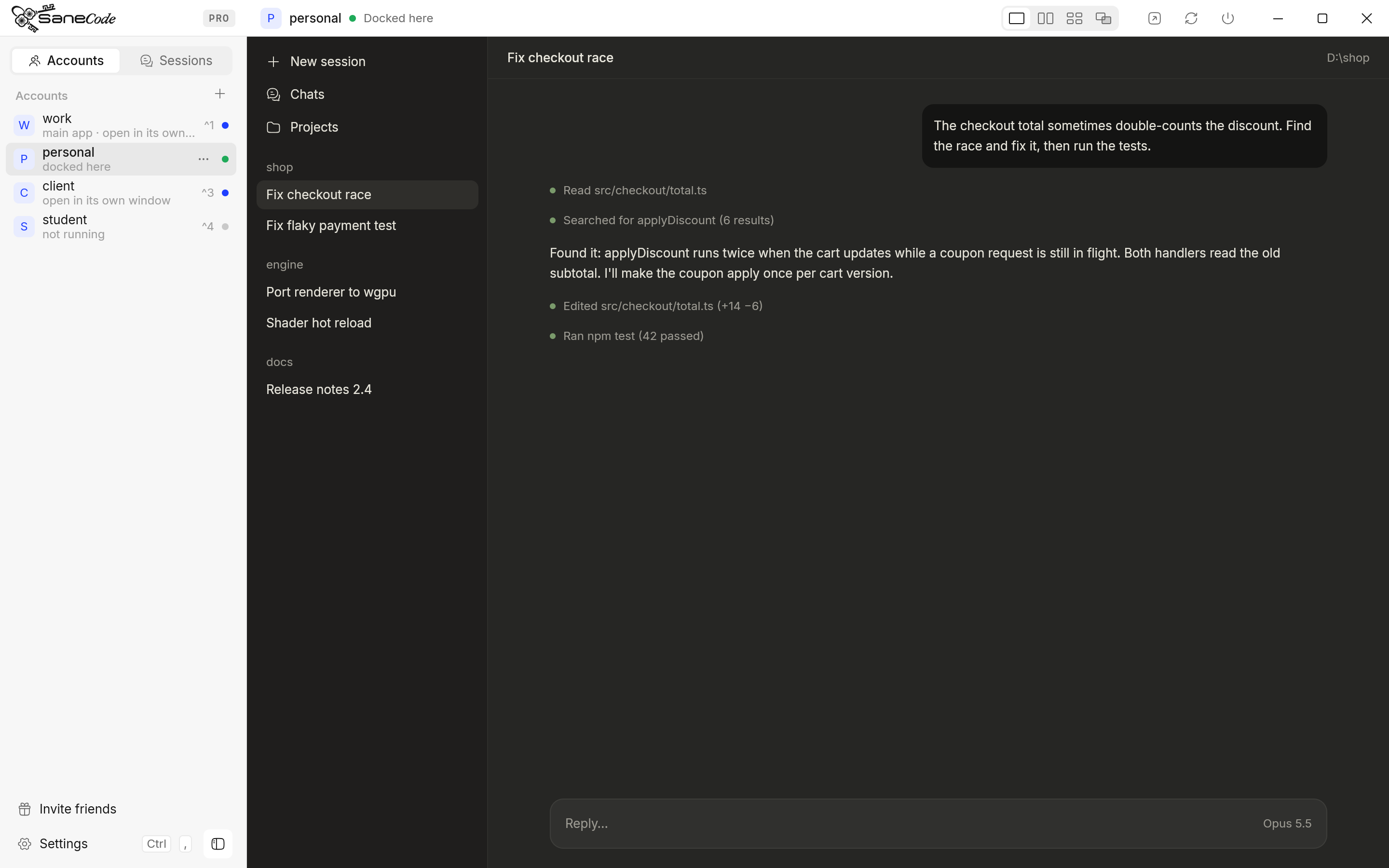
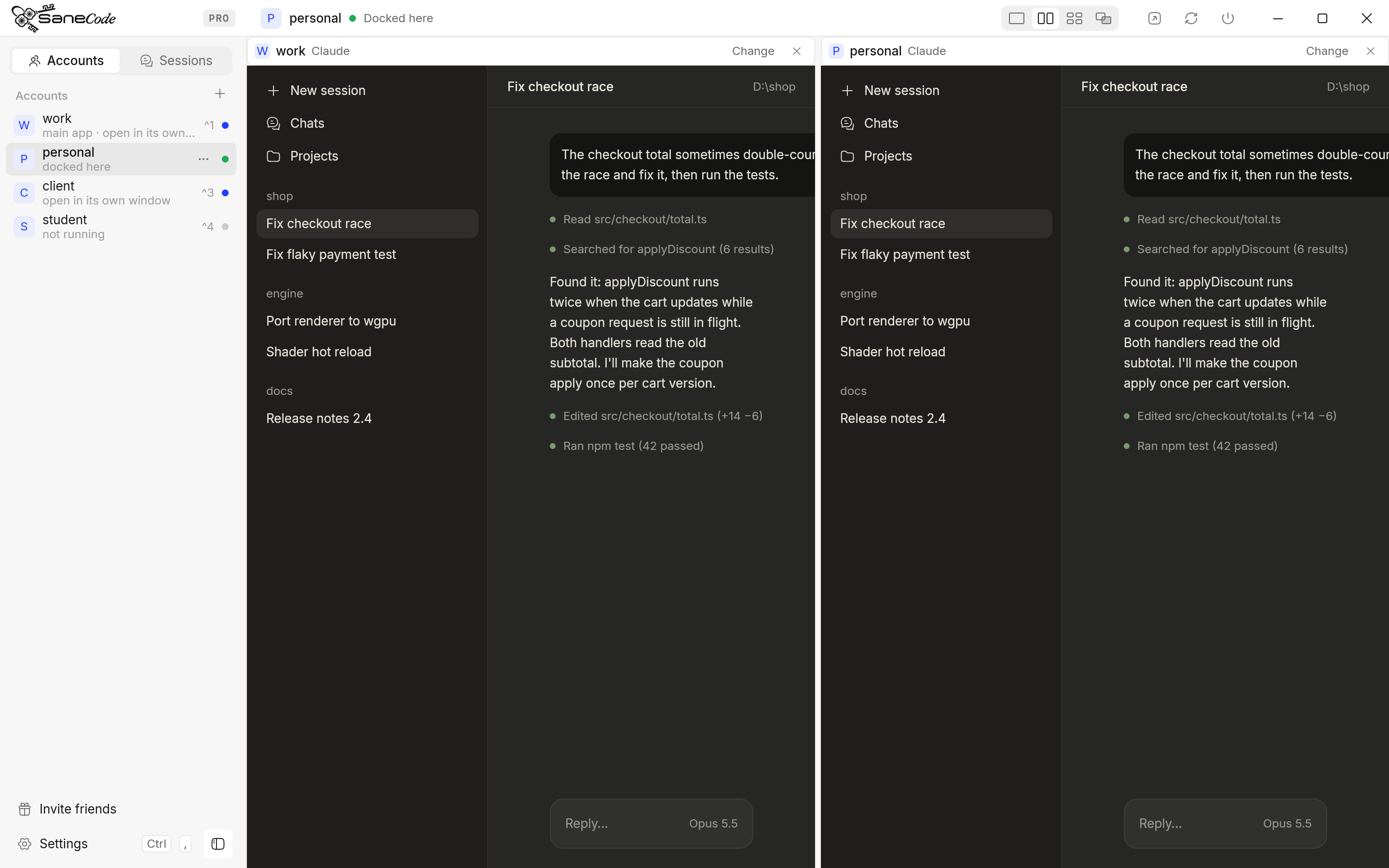
SaneCode runs each Claude account as its own official Claude desktop, docked in one window on Windows. Its Shared browser (Pro) gives every account its own Claude in Chrome connection inside the one Chrome profile you already use, so each account’s Claude uses your real browser, with your logins, without signing the extension out.
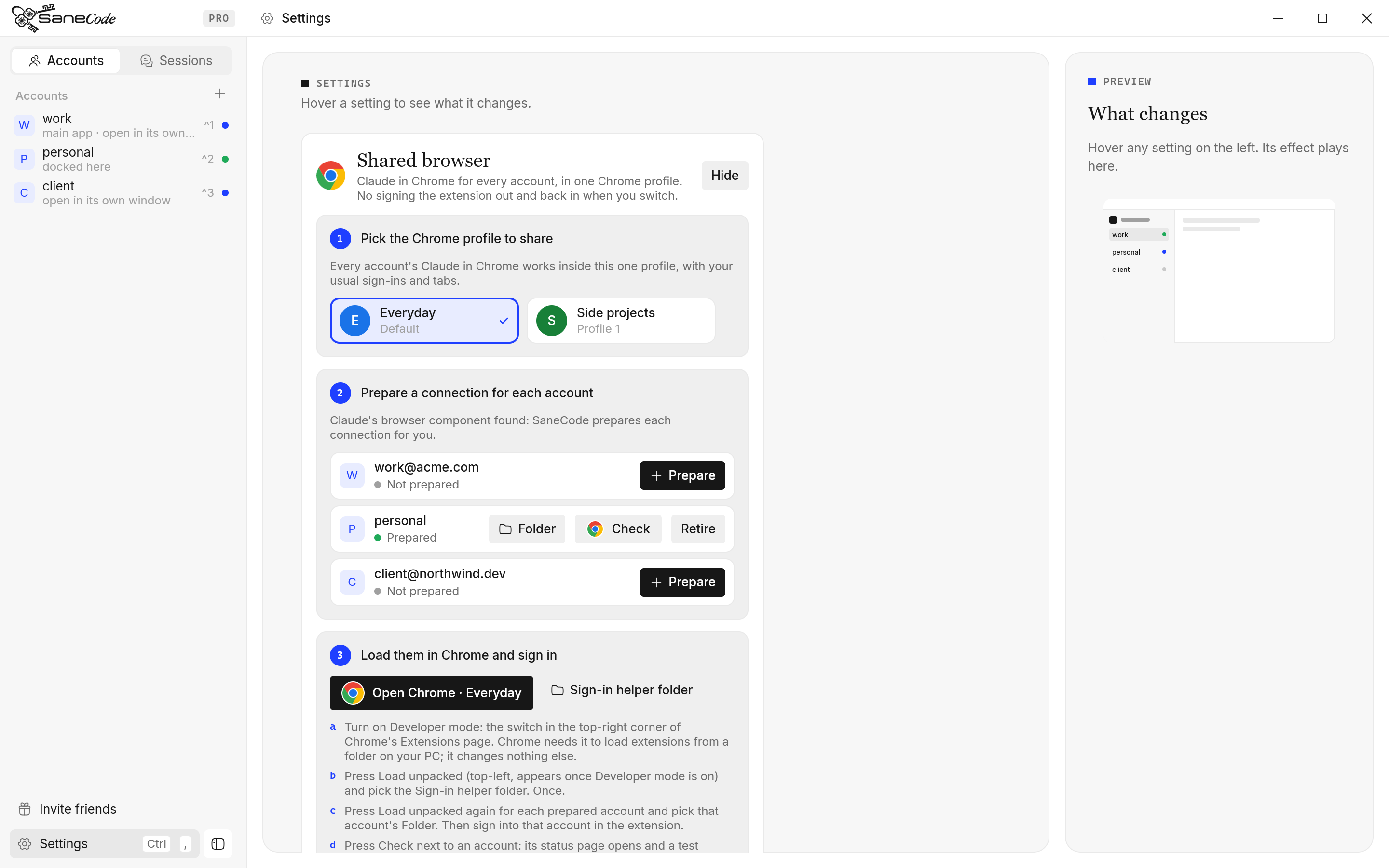
Setup takes three steps in Settings → Shared browser: pick your Chrome profile, prepare a connection for each account, and load them in Chrome. SaneCode builds each connection from the official extension already on your PC; the official extension still does the sign-in, the permissions and the browser tools. Step by step: Claude in Chrome for every account.
Which method should you use?
| Sign out and in | Chrome profile per account | SaneCode shared browser | |
|---|---|---|---|
| Cost | Free | Free | Pro |
| Your website logins | Yes | Only in that profile | Yes, one profile |
| Shortcuts and scheduled tasks | Lost at each logout | Kept per profile | Kept |
| Switching accounts | Log out, log in | Pick the profile in /chrome |
Nothing to switch |
| Platform | Any | Any | Windows |
FAQ
Does Claude in Chrome switch accounts when I switch in Claude desktop?
No. The extension stays on the account it was signed into. Anthropic has an open feature request
for it (#107853).
Can two Claude accounts use Claude in Chrome at the same time?
Yes, if each has its own connection: one Chrome profile per account (Method 2), or SaneCode’s shared browser, which keeps them in one profile (Method 3). One extension signed into one account can’t serve both.
Do I need Claude in Chrome for computer use?
No. Computer use is part of the Claude desktop app and works in each account on its own.
How do I run several Claude accounts at once in the first place?
See How to use multiple Claude accounts on one computer.
Related: Claude in Chrome for every account · Claude Code with multiple accounts · Share MCP servers across accounts
SaneCode runs the official Claude desktop once per account. Free for 2 accounts.
 Are multiple Claude accounts allowed? What Anthropic's rules say (2026)Yes, you may have several Claude accounts. Anthropic's own apps switch between them. What its rules forbid: sharing, ban evasion and resold access.
 Claude Code with multiple accounts: CLAUDE_CONFIG_DIR, CLIProxyAPI and switchers explainedUse two or more Claude accounts in Claude Code without /logout: one CLAUDE_CONFIG_DIR folder per account, PowerShell and bash setups, and the rules.Claude multi-account managers for Windows compared (2026)Claude multi-account managers for Windows compared: SaneCode, Claude Desktop Manager, Claude Sessions Pro, Multi Instance and free scripts, with prices.