Settings
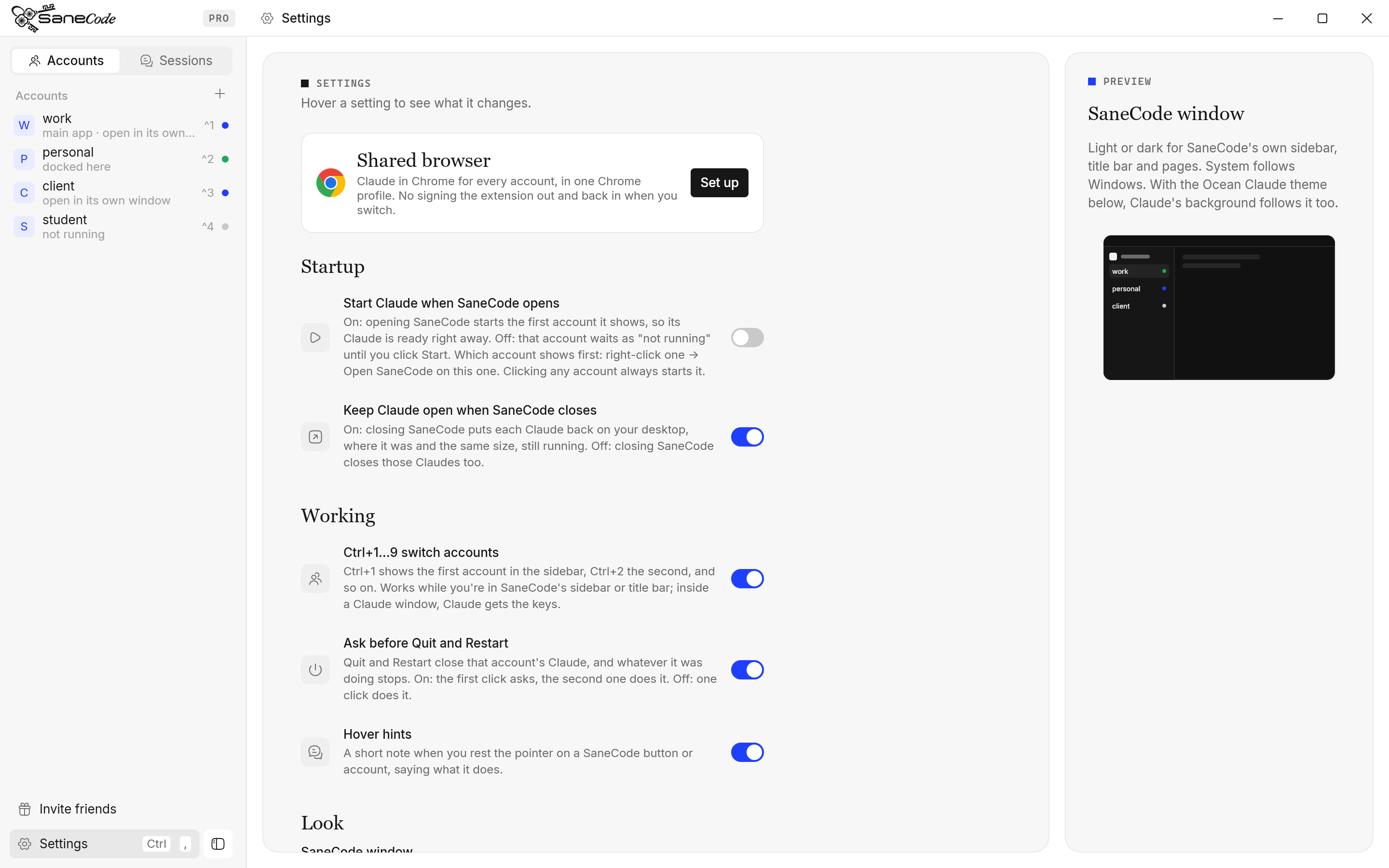
Open with the gear at the bottom of the sidebar or Ctrl+,; pressing either again takes you back to where you were. Esc or clicking an account leaves too. Hover a setting to see a preview of what it changes. Layouts aren’t a setting: pick one in the title bar (see Layouts); SaneCode remembers it.
Startup
| Setting | What it changes |
|---|---|
| Start Claude when SaneCode opens | On: opening SaneCode starts the first account it shows, so its Claude is ready right away. Off: that account waits as “not running” until you click Start. To pick which account shows first, right-click it → Open SaneCode on this one. Clicking any account always starts it. |
| Keep Claude open when SaneCode closes | On: closing SaneCode puts each Claude back on your desktop, where it was and the same size, still running. Off: closing SaneCode closes those Claudes too. |
Working
| Setting | What it changes |
|---|---|
| Ctrl+1…9 switch accounts | Ctrl+1 shows the first account in the sidebar, Ctrl+2 the second, and so on, while you’re in SaneCode’s sidebar or title bar. Inside a Claude window, Claude gets the keys. |
| Ask before Quit and Restart | Quit and Restart close that account’s Claude. On: the first click asks, the second does it. Off: one click does it. |
| Hover hints | A short note when you rest the pointer on a SaneCode button or account. An account’s note says where it is (docked, in its own window, not running), what a click does and its shortcut. |
Look
| Setting | What it changes |
|---|---|
| SaneCode window: System / Light / Dark | Light or dark for SaneCode’s own sidebar, title bar and pages. System follows Windows. With the Ocean Claude theme, Claude’s background follows it too. |
| Plain background (Pro) | White or dark sidebar and title bar with their own fills and dividers, instead of SaneCode’s blue ocean behind everything. Empty screens keep their blue. On Free it shows Upgrade to Pro, which opens the Pro page. |
| See-through buttons and tabs | Tabs, account rows, the Settings button and the title bar’s buttons lose their own white or grey fill and take on whatever is behind them; the one picked or under the pointer gets a light tint. |
| Animate the blue screen | The blue screen behind SaneCode (when an account isn’t running, or no Claude is open) is made of small “sanecode” letters. On: they drift, glow under the pointer and ripple when you click. Off: they stay still, and so do the letters in the Ocean Claude theme. It never animates SaneCode’s own screen while a Claude is on screen. |
| Size | 90% to 150%: how big SaneCode’s own UI is, like zooming a web page. Docked Claude windows keep their own size and still fit exactly beside it. |
| Font | SaneCode’s own text font: Inter (built in), Segoe UI, Arial, Verdana, or any font installed on your PC (type its name and press Use this font). A name that isn’t installed falls back to Inter. Claude keeps its own font. |
| Claude theme, in every account | Claude’s own, Ocean or Ocean colours for Claude Code in every account’s Claude desktop. See Claude themes. |
Locations
- Account folders: where each account’s Claude data lives (default
%LOCALAPPDATA%\Claude-Profiles). Changing it doesn’t move existing folders; move them first, then point here, then restart SaneCode. - Claude’s data root: set by Claude (
%LOCALAPPDATA%\Claude-Data); shown for reference. - SaneCode settings:
%APPDATA%\SaneCode\settings.json.
Shared browser
Settings → Shared browser (Pro) gives every account its own Claude in Chrome connection in one
Chrome profile, in three steps: pick the profile (shown with Chrome’s own name and picture),
prepare a connection per account, then Open Chrome ·
Help
| Setting | What it changes |
|---|---|
| Show the tour again | Replays the six-step tour, including layouts and window tabs. |
| Keep a diagnostic log | On by default. SaneCode writes what it does (accounts starting, windows docking, errors) to %APPDATA%\SaneCode\logs\sanecode.log, kept under about 4 MB. Chat titles are left out and nothing is sent: attach the file yourself when you report a problem. Open shows the folder. |
Plan
Shows FREE or PRO and what each includes: Free has up to 2 accounts and the Split and Grid layouts; Pro ($29 a month) adds unlimited accounts, the Canvas layout, Session Relay, the plain window look, the tray and global hotkeys. Ctrl+1…9 is free.
Below it, the SaneCode account this PC is signed in to:
| Button | What it does |
|---|---|
| Sign in | Opens sanecode.co/signin in your browser. Sign in with Google or with a 6-digit code sent to your email; there’s no password. SaneCode notices within a few seconds, on its own. |
| Get Pro / Upgrade to Pro | Opens the Pro page, which signs this PC in too. Pay through Paddle; Pro turns on in SaneCode by itself. |
| Manage subscription | Paddle’s billing page: cancel, change your card, download invoices. |
| Sign out | Signs this PC out. Your account and Pro stay, and your other PCs are untouched. |
Pro belongs to your account, so it works on every PC you sign in on, with no limit. SaneCode checks your plan when it starts and keeps a signed pass that lasts 30 days, so Pro works offline that long. If Paddle can’t take a payment, Pro stays on while it retries and this section says so.
Shared MCP servers
One list of local MCP servers, added to every account. See Shared MCP servers.
Claude desktop
Shows whether Claude is installed, its version, the launcher, and whether the main app’s data folder is linked to your account. Store opens Claude’s page in the Microsoft Store; Show opens the launcher or the data folder in File Explorer. SaneCode checks this when it starts, when a Claude starts or stops, and when accounts change; a Store update shows once Claude has restarted on it. See Claude updates and repair.
Written by the founder, @inxanity06 · Updated 2026-11-16