
Accounts
Each account in SaneCode is a complete Claude desktop setup: its sign-in, settings, chats, Code sessions and connectors. Accounts never share sign-ins, so a client org’s connectors stay with that client.
Add an account
Press + next to Accounts (or Add an account on an empty screen).
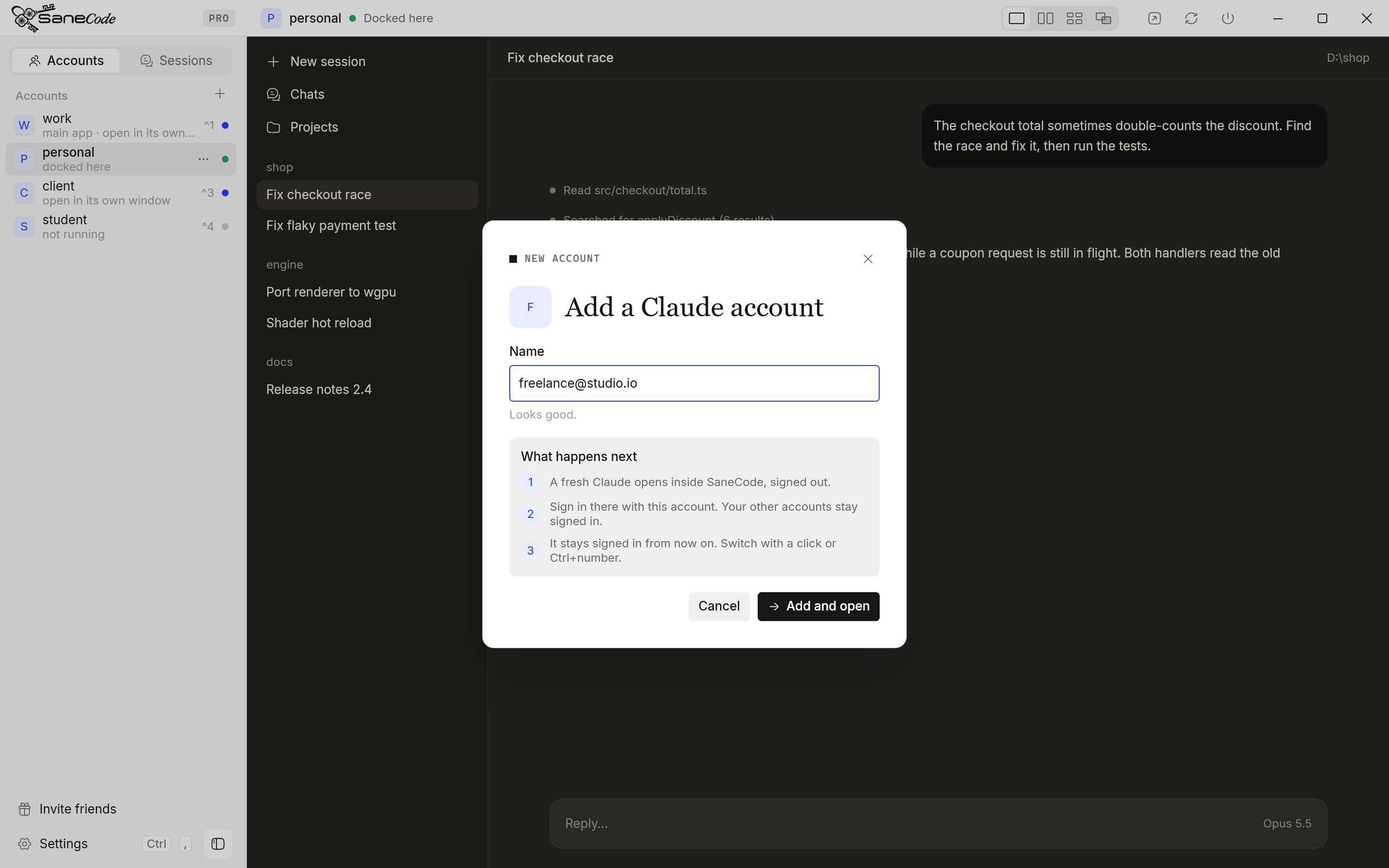
- Type a name you’ll recognize. An email works well:
client@northwind.dev. Letters, digits and@ + . _ -are allowed; the name also becomes the account’s folder name. - Press Add and open. A fresh Claude opens inside SaneCode, signed out.
- A sign-in guide opens beside the new Claude. Sign in in that Claude (Continue with Google, or your email); your browser opens to finish. The guide waits, notices when you’re signed in, and closes by itself. From then on the account stays signed in.
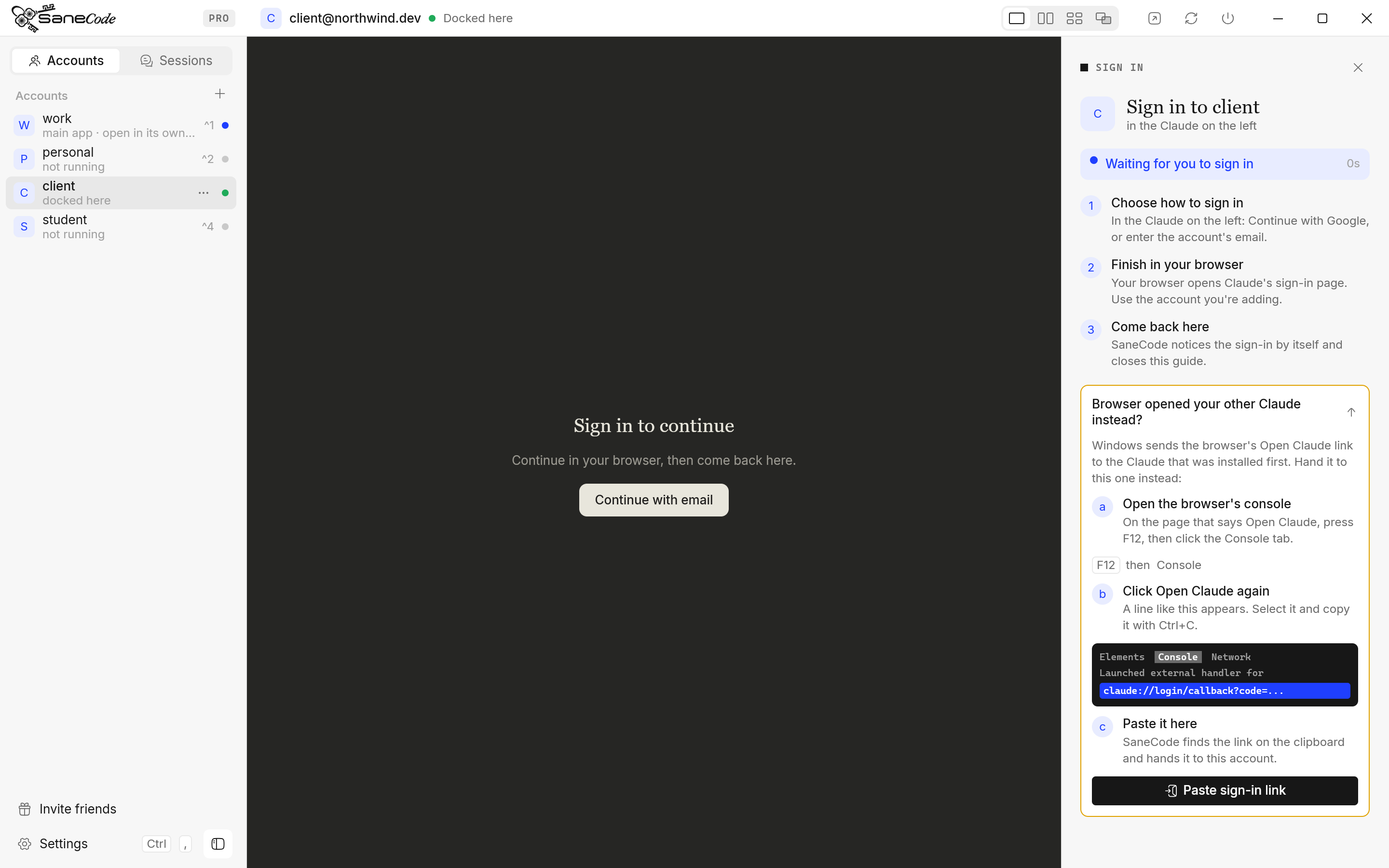
If the sign-in lands in your other Claude
Your browser ends the sign-in with an Open Claude button. Windows sends that link to the Claude that was installed first, which may be your other account instead of the new one. The guide’s Browser opened your other Claude instead? section walks you through it:
- On the page with the Open Claude button, press F12 and click the Console tab.
- Click Open Claude again. A line starting with Launched external handler for ‘claude://…’ appears: select it and copy it.
- Press Paste sign-in link in the guide. SaneCode hands the link to the new account.
You can reopen the guide any time: right-click the account → Sign in….
The status dot
| Dot | Means |
|---|---|
| Green | Docked in SaneCode |
| Blue | Running in its own window |
| Amber | Starting |
| Gray | Not running |
| Red | Not responding: its Claude is running but shows no window (usually after a crash). Click it, then Restart Claude |
Right-click an account
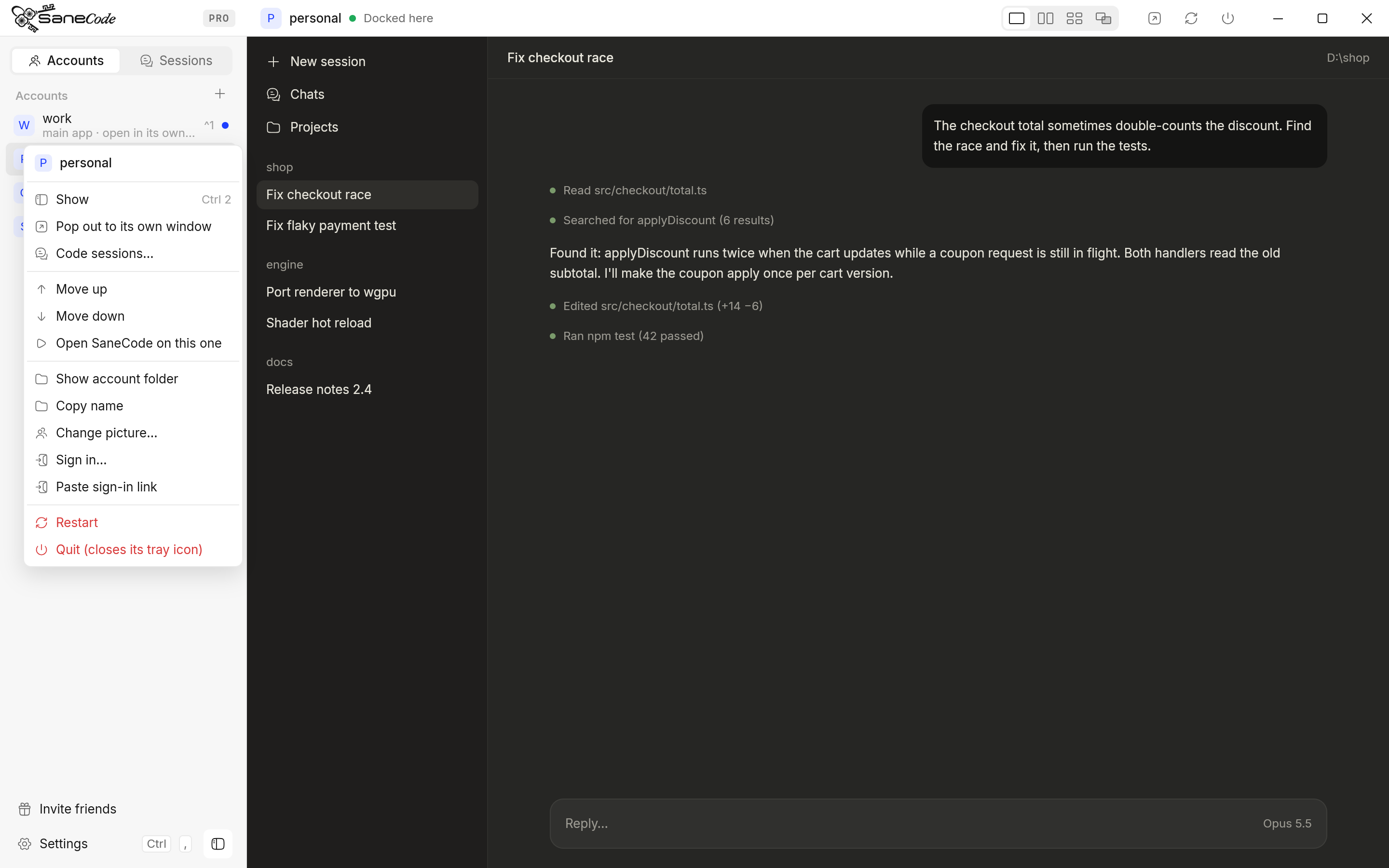
- Show / Start here / Bring into SaneCode: depending on its state.
- Pop out to its own window: it keeps running outside SaneCode; pick it again to bring it back.
- Code sessions…: its sessions, ready to continue elsewhere.
- Move up / Move down: the order also sets Ctrl+number.
- Open SaneCode on this one: the account shown when SaneCode starts.
- Show account folder, Copy name, Sign in…, Paste sign-in link.
- Restart / Quit that account’s Claude.
How does SaneCode run several Claude accounts at once?
Claude desktop is installed once. SaneCode starts that same official app once per account, each copy with its own data folder, and docks every copy’s window into its own. All of them run at the same time; switching only changes which window you see. Nothing is signed out, closed or swapped.
Each account’s data lives in its own folder, %LOCALAPPDATA%\Claude-Profiles\<account>. Because
Claude desktop (installed from claude.com or the Microsoft Store, the same packaged app) only writes real files inside its own data folder,
%LOCALAPPDATA%\Claude-Data, SaneCode puts a link (a Windows junction) there for each account
that points at its folder in Claude-Profiles:
In Claude-Data |
Points to |
|---|---|
claude_pzs8sxrjxfjjc (Claude’s own folder name) |
your main account’s folder, so Claude from the Start menu opens it |
acct-<account> |
each other account’s folder, which SaneCode starts that copy with |
The README.txt there is Claude’s own. Don’t delete or move these links while Claude runs; if a
Claude update resets them, SaneCode offers Repair (updates).
All accounts share the installed app and Claude Code’s settings in %USERPROFILE%\.claude
(plugins, skills, mods, themes); see Plugins, skills and mods.
Each account keeps its own sign-in, chats, Code sessions and settings.
The main account
One account is the main app: the one that opens if you start Claude from the Start menu. It’s the Claude you brought in on first run (or your first account). The others run as extra copies.
Written by the founder, @inxanity06 · Updated 2026-11-16