Claude in Chrome for every account
Updated November 16, 2026.
Why do I need this?
The Claude in Chrome extension is signed into one Claude account, and it has to be the same account as your desktop app. With several accounts that normally means signing the extension out and back in every time you switch, or keeping a separate Chrome profile for each account (with its own sign-ins, bookmarks and tabs). SaneCode’s Shared browser gives every account its own extension connection inside one Chrome profile, the one you already use.
Computer use needs nothing extra: every SaneCode account is the full Claude desktop app, so it works in each one as it does on its own.
How do I set it up?
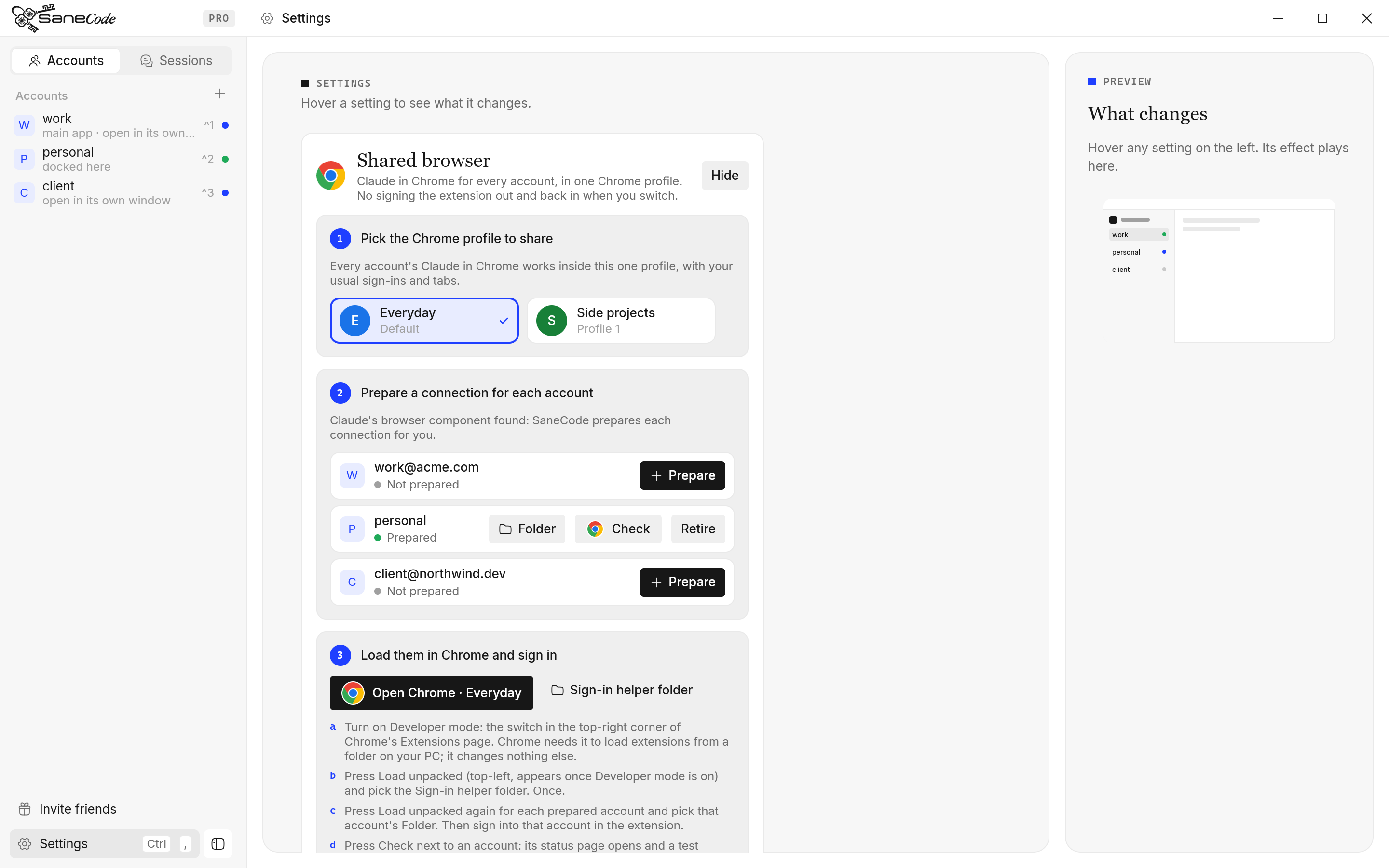
Open Settings → Shared browser → Set up (Pro). The setup has three steps, each in its own card.
- Pick the Chrome profile to share. SaneCode lists your Chrome profiles by the names and pictures Chrome shows for them. Pick the one you use every day.
- Prepare a connection for each account. Close Chrome first (SaneCode never closes your tabs for you). Keep the official extension for the account it’s signed into now, and press Prepare for each other account. SaneCode finds the official Claude extension already on your PC and builds that account’s connection from it; nothing is downloaded.
- Load them in Chrome and sign in. Press Open Chrome ·
: Chrome opens that exact profile on its Extensions page ( chrome://extensions). Then do the steps below.
How do I turn on Developer mode and load the extensions?
The connections SaneCode prepares are folders on your PC, and Chrome only loads an extension from a folder when Developer mode is on. It’s a switch on Chrome’s Extensions page; it doesn’t change anything else in Chrome.
- On the Extensions page (
chrome://extensions, which Open Chrome takes you to), find the Developer mode switch in the top-right corner and turn it on. A row of buttons appears at the top left. - Press Load unpacked and pick the Sign-in helper folder (SaneCode’s Sign-in helper folder button opens it). Do this once.
- Press Load unpacked again for each account you prepared and pick that account’s Folder. The extension appears in the list.
- Open that extension and sign into the matching Claude account.
Keep Developer mode on: if you turn it off, Chrome turns off the extensions loaded from folders. Chrome may show a note about developer-mode extensions when it starts; that’s expected.
How do I check it works?
Press Check next to an account to open its status page in the same profile. It shows which account the connection is signed into and sends a test request from that account’s Code tab.
What does each account’s status mean?
| Status | Meaning |
|---|---|
| Not prepared | No connection for this account yet. Press Prepare. |
| Prepared | Its folder is ready. Load it in Chrome and sign in, then Check. |
| Old test connection | Made by an earlier test build. Retire it and prepare again. |
What does Retire do?
It stops routing new sign-ins to that connection. The files and its login stay; turn the extension off in Chrome yourself, and use its own sign-out to remove its login.
What does SaneCode touch?
Its own folder only: %LOCALAPPDATA%\SaneCode\browser. It doesn’t change Chrome’s settings,
read extension tokens, close tabs, or modify Claude desktop. The official extension keeps doing
the sign-in, permissions and browser tools.
Is it free?
No, the shared browser is part of Pro, which includes everything in Free. On Free, Settings shows it with a PRO tag and Upgrade to Pro. See pricing.
Related: Settings · How SaneCode works · FAQ
Written by the founder, @inxanity06 · Updated 2026-11-16