# Switching and windows (SaneCode docs)
> SaneCode is a Windows app that runs several Claude desktop accounts in one window. Each account is the official, unmodified Claude desktop app with its own data folder; SaneCode starts one per account and docks their windows beside its sidebar, so every account stays signed in. Free for 2 accounts; Pro ($29 once) for more. Not affiliated with Anthropic.
Page: https://sanecode.co/docs/switch-claude-accounts-without-signing-out/
Markdown: https://sanecode.co/docs/switch-claude-accounts-without-signing-out.md
## All SaneCode docs pages
- [Let Claude use SaneCode (MCP) and failover](https://sanecode.co/docs/let-claude-use-sanecode-mcp-failover/): SaneCode's own MCP server lets Claude see your accounts and their usage limits, carry a conversation on in another account when one runs out, schedule Continue after the reset, and report what happened while you were away. (Markdown: https://sanecode.co/docs/let-claude-use-sanecode-mcp-failover.md)
- [Use SaneCode from ChatGPT, Claude.ai and other AI apps](https://sanecode.co/docs/use-sanecode-from-chatgpt-claude-and-other-ai-apps/): Connect SaneCode's remote MCP server (mcp.sanecode.co) to ChatGPT, Claude.ai, Claude Code, Cursor, VS Code and other AI apps, so they can check your Claude accounts and move or schedule work on your PC. (Markdown: https://sanecode.co/docs/use-sanecode-from-chatgpt-claude-and-other-ai-apps.md)
- [Overview](https://sanecode.co/docs/): What SaneCode is and how it fits with Claude desktop. (Markdown: https://sanecode.co/docs/index.md)
- [How SaneCode works](https://sanecode.co/docs/how-sanecode-runs-multiple-claude-instances/): How SaneCode runs several Claude desktop accounts at once on Windows, where each account's data lives, what every account shares, what SaneCode changes on your PC, and how its settings connect. (Markdown: https://sanecode.co/docs/how-sanecode-runs-multiple-claude-instances.md)
- [Install and first run](https://sanecode.co/docs/install-sanecode-on-windows/): Install SaneCode and bring in the Claude you already use. (Markdown: https://sanecode.co/docs/install-sanecode-on-windows.md)
- [Add Claude accounts and sign in](https://sanecode.co/docs/add-claude-accounts-and-sign-in/): Add a second (or fifth) Claude account to SaneCode, sign in once with the built-in guide, and fix sign-ins that land in your other Claude. (Markdown: https://sanecode.co/docs/add-claude-accounts-and-sign-in.md)
- [Switching and windows](https://sanecode.co/docs/switch-claude-accounts-without-signing-out/): Shortcuts, popping out, chat tabs, and what happens when SaneCode closes. (Markdown: https://sanecode.co/docs/switch-claude-accounts-without-signing-out.md)
- [Layouts: Split, Grid and Canvas](https://sanecode.co/docs/claude-desktop-side-by-side-layouts/): See several Claude accounts or chats at once in SaneCode. Split and Grid are free, Canvas is Pro. Every control, what it does, and the limits. (Markdown: https://sanecode.co/docs/claude-desktop-side-by-side-layouts.md)
- [Continue a Claude conversation in another account after a usage limit](https://sanecode.co/docs/continue-claude-session-in-another-account/): When a Claude account hits its usage limit, move the Claude Code conversation to another of your accounts and keep going with the full context, no new chat, no re-explaining. (Markdown: https://sanecode.co/docs/continue-claude-session-in-another-account.md)
- [Continue after reset (Automations)](https://sanecode.co/docs/continue-claude-after-usage-limit-resets/): Send “Continue” or your own prompt to any Claude account's window, or to Codex, when its usage limit resets. Several at once, logged, without keeping the window in front. (Markdown: https://sanecode.co/docs/continue-claude-after-usage-limit-resets.md)
- [Shared MCP servers](https://sanecode.co/docs/share-mcp-servers-across-claude-accounts/): Set up an MCP server once in SaneCode and every Claude account gets it, instead of configuring it in each account. (Markdown: https://sanecode.co/docs/share-mcp-servers-across-claude-accounts.md)
- [Claude in Chrome for every account](https://sanecode.co/docs/claude-in-chrome-for-every-account/): Use Claude in Chrome from every Claude desktop account in one Chrome profile, without signing the extension out and in when you switch. (Markdown: https://sanecode.co/docs/claude-in-chrome-for-every-account.md)
- [Claude desktop and Claude Code themes](https://sanecode.co/docs/claude-desktop-and-claude-code-themes/): Change the theme of Claude desktop's Code tab in every account at once. SaneCode applies a Claude Code theme (colours and a background) with one setting, in light or dark mode, without modifying Claude. (Markdown: https://sanecode.co/docs/claude-desktop-and-claude-code-themes.md)
- [Claude Code plugins, skills, mods and MCP with several accounts](https://sanecode.co/docs/claude-code-plugins-and-skills-in-every-account/): Plugins and skills added in Claude desktop belong to one account; Claude Code's own .claude folder is one per PC. Which extensions every account shares, which stay per account, and how to set them up. (Markdown: https://sanecode.co/docs/claude-code-plugins-and-skills-in-every-account.md)
- [Settings](https://sanecode.co/docs/sanecode-settings/): Every setting and exactly what it changes. (Markdown: https://sanecode.co/docs/sanecode-settings.md)
- [Invite friends: $5 off Pro each](https://sanecode.co/docs/invite-friends-get-pro-discount/): Share your SaneCode referral link. Every friend who signs up and signs in from SaneCode takes $5 off your Pro, and gets $5 off theirs. Six friends make Pro free. (Markdown: https://sanecode.co/docs/invite-friends-get-pro-discount.md)
- [Claude updates and repair](https://sanecode.co/docs/claude-desktop-updates-and-repair/): What happens when Claude desktop updates, resets or is reinstalled. (Markdown: https://sanecode.co/docs/claude-desktop-updates-and-repair.md)
- [FAQ and troubleshooting](https://sanecode.co/docs/sanecode-faq-and-troubleshooting/): Common questions and fixes. (Markdown: https://sanecode.co/docs/sanecode-faq-and-troubleshooting.md)
## Questions people ask
- How do I add a second Claude account?
- How do I continue a Claude Code session in another account after a usage limit?
- How do I share my MCP servers with every Claude account?
- Does SaneCode change the Claude app or my sign-ins?
---
# Switching and windows
## Switch
- Click an account in the sidebar, or press Ctrl+1…9 (sidebar
order) while SaneCode's sidebar has focus.
- The account you leave keeps running: a long task keeps going while you work elsewhere.
- The title bar shows the account on show and its state. Its buttons **pop out**, **restart** and
**quit** that account's Claude.
## Back and forward
The **back** and **forward** buttons on the side of your mouse step through what SaneCode
showed, like a browser: the accounts you switched between, Settings and Invite friends. They
work over SaneCode's own sidebar, title bar and pages; over a Claude window they stay Claude's
own back and forward. Pressing **Settings** (or Ctrl+,) or **Invite friends**
again also takes you back.
## Typing
Click inside the docked Claude and type as usual. Click SaneCode's sidebar or a field and your
keys go there instead.
## See several at once
To see two or more accounts at the same time without leaving SaneCode, pick **Split**, **Grid**
or **Canvas** in the title bar. See [Layouts](https://sanecode.co/docs/claude-desktop-side-by-side-layouts/).
## Pop out and bring back
**Pop out** gives an account its own window on the desktop, for example to move it to another
screen. It keeps running. Pick the account again (or **Bring into SaneCode**) to dock it back.
## Popped-out chats come in as tabs
[Claude desktop](https://claude.com/download) can pop a chat out into its own window. SaneCode leaves that window where Claude
put it, and shows **+1 window** (or **+2 windows**…) next to the account's name in the title bar.
- Click **+1 window** to bring the chat in as a **tab**. A row of tabs appears in the title bar:
**Claude** for the main window, then each chat by name. Click a tab to show it.
- The tab you're on has a small pop-out button: it **sends the chat back out** to its own window,
where it was before.
- Closing the chat with Claude's own close button removes its tab and shows the main window.
- In Split, Grid or Canvas, **+1 window** puts the chat straight into a [layout](https://sanecode.co/docs/claude-desktop-side-by-side-layouts/)
pane (the first empty one, or in front on the canvas). Any chat, tab or floating, can also go in
a pane with **Change**.
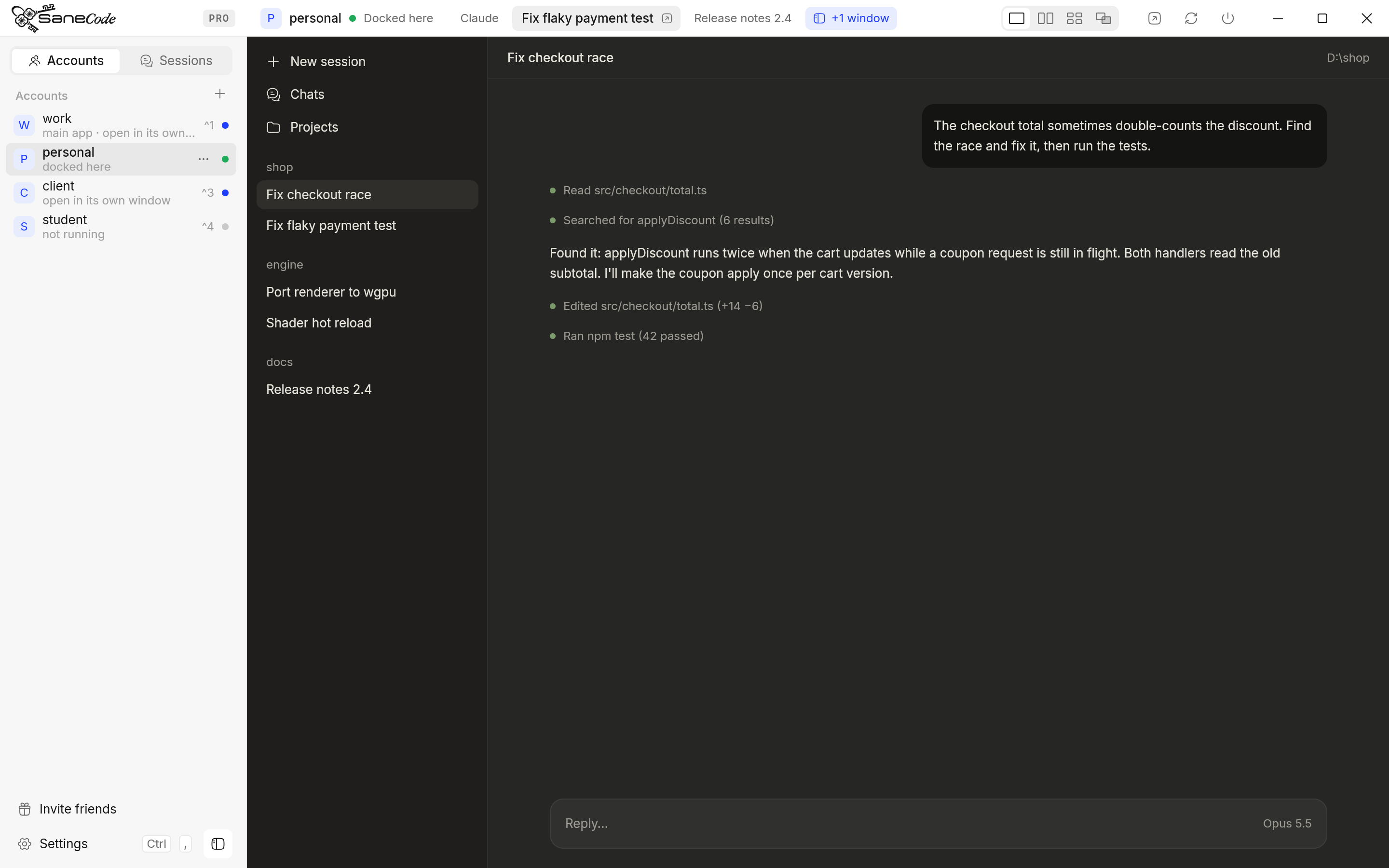
A Claude you opened yourself, outside SaneCode, is never taken over: the account shows a blue dot
and a **Bring into SaneCode** button until you ask.
## Closing SaneCode
By default every docked Claude goes back to the desktop, exactly where and how big it was before,
and keeps running. In **Settings → Keep Claude open when SaneCode closes** you can choose to close
them with SaneCode instead.
> If SaneCode is ended from Task Manager it can't hand windows back, and their Claude apps close.
> Your chats and sessions are safe; start them again from SaneCode.
## Restart and Quit
Both close a running Claude, so they ask for a second click, from the title bar buttons and from
the account's right-click menu alike: the first click turns it red (**Click again**), the second
does it. Clicking anywhere else cancels. Turn that off in Settings if you prefer.