# Layouts: Split, Grid and Canvas (SaneCode docs)
> SaneCode is a Windows app that runs several Claude desktop accounts in one window. Each account is the official, unmodified Claude desktop app with its own data folder; SaneCode starts one per account and docks their windows beside its sidebar, so every account stays signed in. Free for 2 accounts; Pro ($29 once) for more. Not affiliated with Anthropic.
Page: https://sanecode.co/docs/claude-desktop-side-by-side-layouts/
Markdown: https://sanecode.co/docs/claude-desktop-side-by-side-layouts.md
## All SaneCode docs pages
- [Let Claude use SaneCode (MCP) and failover](https://sanecode.co/docs/let-claude-use-sanecode-mcp-failover/): SaneCode's own MCP server lets Claude see your accounts and their usage limits, carry a conversation on in another account when one runs out, schedule Continue after the reset, and report what happened while you were away. (Markdown: https://sanecode.co/docs/let-claude-use-sanecode-mcp-failover.md)
- [Use SaneCode from ChatGPT, Claude.ai and other AI apps](https://sanecode.co/docs/use-sanecode-from-chatgpt-claude-and-other-ai-apps/): Connect SaneCode's remote MCP server (mcp.sanecode.co) to ChatGPT, Claude.ai, Claude Code, Cursor, VS Code and other AI apps, so they can check your Claude accounts and move or schedule work on your PC. (Markdown: https://sanecode.co/docs/use-sanecode-from-chatgpt-claude-and-other-ai-apps.md)
- [Overview](https://sanecode.co/docs/): What SaneCode is and how it fits with Claude desktop. (Markdown: https://sanecode.co/docs/index.md)
- [How SaneCode works](https://sanecode.co/docs/how-sanecode-runs-multiple-claude-instances/): How SaneCode runs several Claude desktop accounts at once on Windows, where each account's data lives, what every account shares, what SaneCode changes on your PC, and how its settings connect. (Markdown: https://sanecode.co/docs/how-sanecode-runs-multiple-claude-instances.md)
- [Install and first run](https://sanecode.co/docs/install-sanecode-on-windows/): Install SaneCode and bring in the Claude you already use. (Markdown: https://sanecode.co/docs/install-sanecode-on-windows.md)
- [Add Claude accounts and sign in](https://sanecode.co/docs/add-claude-accounts-and-sign-in/): Add a second (or fifth) Claude account to SaneCode, sign in once with the built-in guide, and fix sign-ins that land in your other Claude. (Markdown: https://sanecode.co/docs/add-claude-accounts-and-sign-in.md)
- [Switching and windows](https://sanecode.co/docs/switch-claude-accounts-without-signing-out/): Shortcuts, popping out, chat tabs, and what happens when SaneCode closes. (Markdown: https://sanecode.co/docs/switch-claude-accounts-without-signing-out.md)
- [Layouts: Split, Grid and Canvas](https://sanecode.co/docs/claude-desktop-side-by-side-layouts/): See several Claude accounts or chats at once in SaneCode. Split and Grid are free, Canvas is Pro. Every control, what it does, and the limits. (Markdown: https://sanecode.co/docs/claude-desktop-side-by-side-layouts.md)
- [Continue a Claude conversation in another account after a usage limit](https://sanecode.co/docs/continue-claude-session-in-another-account/): When a Claude account hits its usage limit, move the Claude Code conversation to another of your accounts and keep going with the full context, no new chat, no re-explaining. (Markdown: https://sanecode.co/docs/continue-claude-session-in-another-account.md)
- [Continue after reset (Automations)](https://sanecode.co/docs/continue-claude-after-usage-limit-resets/): Send “Continue” or your own prompt to any Claude account's window, or to Codex, when its usage limit resets. Several at once, logged, without keeping the window in front. (Markdown: https://sanecode.co/docs/continue-claude-after-usage-limit-resets.md)
- [Shared MCP servers](https://sanecode.co/docs/share-mcp-servers-across-claude-accounts/): Set up an MCP server once in SaneCode and every Claude account gets it, instead of configuring it in each account. (Markdown: https://sanecode.co/docs/share-mcp-servers-across-claude-accounts.md)
- [Claude in Chrome for every account](https://sanecode.co/docs/claude-in-chrome-for-every-account/): Use Claude in Chrome from every Claude desktop account in one Chrome profile, without signing the extension out and in when you switch. (Markdown: https://sanecode.co/docs/claude-in-chrome-for-every-account.md)
- [Claude desktop and Claude Code themes](https://sanecode.co/docs/claude-desktop-and-claude-code-themes/): Change the theme of Claude desktop's Code tab in every account at once. SaneCode applies a Claude Code theme (colours and a background) with one setting, in light or dark mode, without modifying Claude. (Markdown: https://sanecode.co/docs/claude-desktop-and-claude-code-themes.md)
- [Claude Code plugins, skills, mods and MCP with several accounts](https://sanecode.co/docs/claude-code-plugins-and-skills-in-every-account/): Plugins and skills added in Claude desktop belong to one account; Claude Code's own .claude folder is one per PC. Which extensions every account shares, which stay per account, and how to set them up. (Markdown: https://sanecode.co/docs/claude-code-plugins-and-skills-in-every-account.md)
- [Settings](https://sanecode.co/docs/sanecode-settings/): Every setting and exactly what it changes. (Markdown: https://sanecode.co/docs/sanecode-settings.md)
- [Invite friends: $5 off Pro each](https://sanecode.co/docs/invite-friends-get-pro-discount/): Share your SaneCode referral link. Every friend who signs up and signs in from SaneCode takes $5 off your Pro, and gets $5 off theirs. Six friends make Pro free. (Markdown: https://sanecode.co/docs/invite-friends-get-pro-discount.md)
- [Claude updates and repair](https://sanecode.co/docs/claude-desktop-updates-and-repair/): What happens when Claude desktop updates, resets or is reinstalled. (Markdown: https://sanecode.co/docs/claude-desktop-updates-and-repair.md)
- [FAQ and troubleshooting](https://sanecode.co/docs/sanecode-faq-and-troubleshooting/): Common questions and fixes. (Markdown: https://sanecode.co/docs/sanecode-faq-and-troubleshooting.md)
## Questions people ask
- How do I add a second Claude account?
- How do I continue a Claude Code session in another account after a usage limit?
- How do I share my MCP servers with every Claude account?
- Does SaneCode change the Claude app or my sign-ins?
---
# Layouts: Split, Grid and Canvas
**Layouts show several Claude windows at once inside SaneCode.** Pick one with the four small
pictures at the right of the title bar: **one Claude**, **Split**, **Grid** and **Canvas**.
Every pane is a real [Claude desktop](https://claude.com/download) window, from any of your accounts, or a chat you
[popped out](https://sanecode.co/docs/switch-claude-accounts-without-signing-out/#popped-out-chats-come-in-as-tabs). Split and Grid are free; Canvas
is part of Pro.
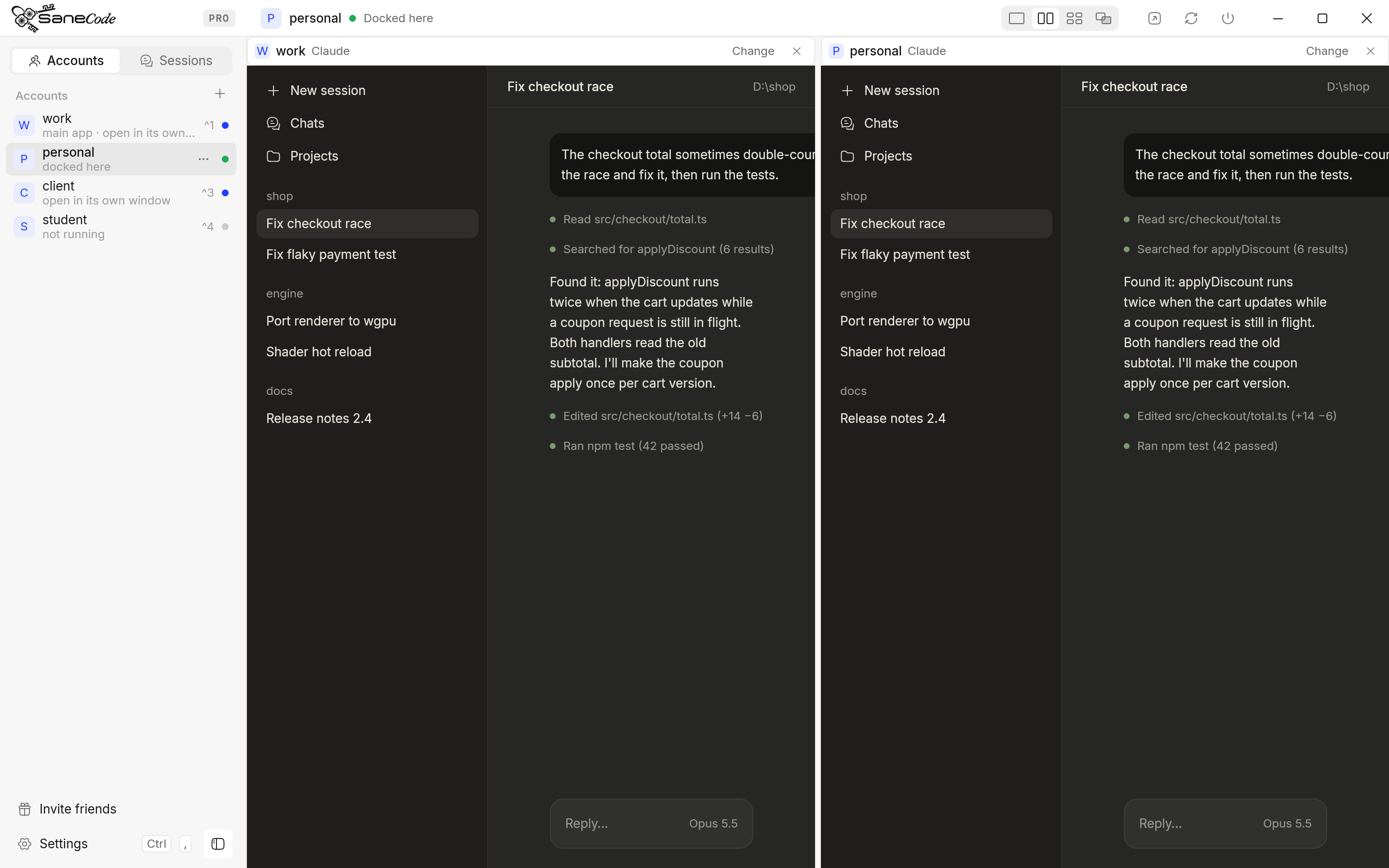
## What's on every pane?
Each pane has a slim header that SaneCode draws above the Claude window:
- **The account picture and name**, then **which window**: "Claude" for the account's main
window, or the chat's name.
- **Change** opens a list of every account and every chat. Pick one to show it in this pane. If it's
already in another pane (or elsewhere on the Canvas), the two swap places.
If it's already in another pane, the two swap. If its account isn't running, SaneCode starts it.
- **×** takes the window out of the layout. That Claude keeps running.
Click inside a pane to type there: your keys go to the pane you clicked last.
## How do I use Split?
**Split shows two Claude windows side by side.** Drag the line between them to give one side
more room (each side keeps at least 280 points), and double-click the line to go back to 50/50.
Split is free.
## How do I use Grid?
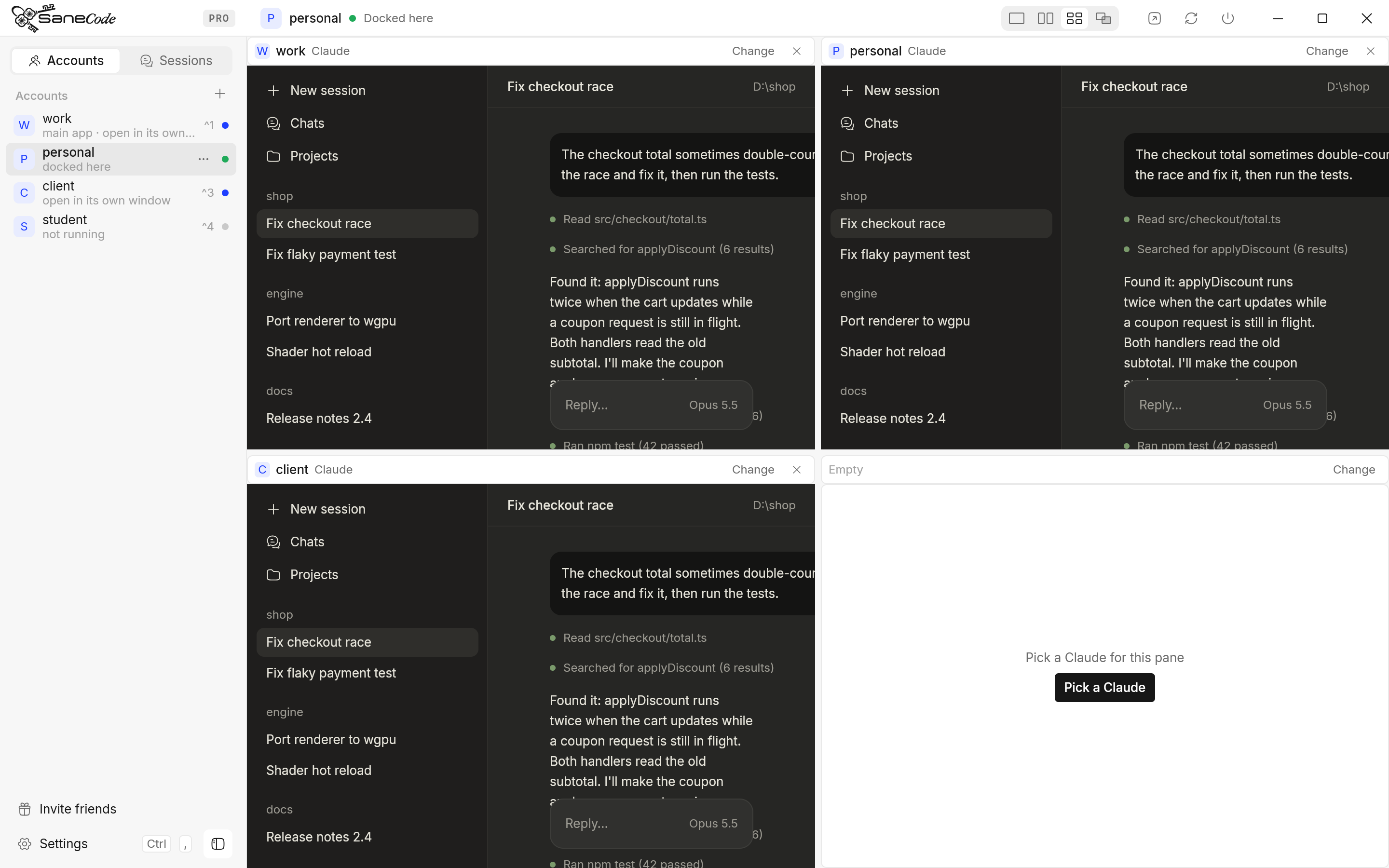
**Grid shows four Claude windows in a 2×2.** An empty tile shows **Pick a Claude**.
- **Change** on a tile's header picks what's in it; **×** empties the tile.
- A chat you bring in with **+1 window** goes into the first empty tile.
- Drag a header and drop it on another tile to **swap** the two.
Grid is free.
## How do I use Canvas?
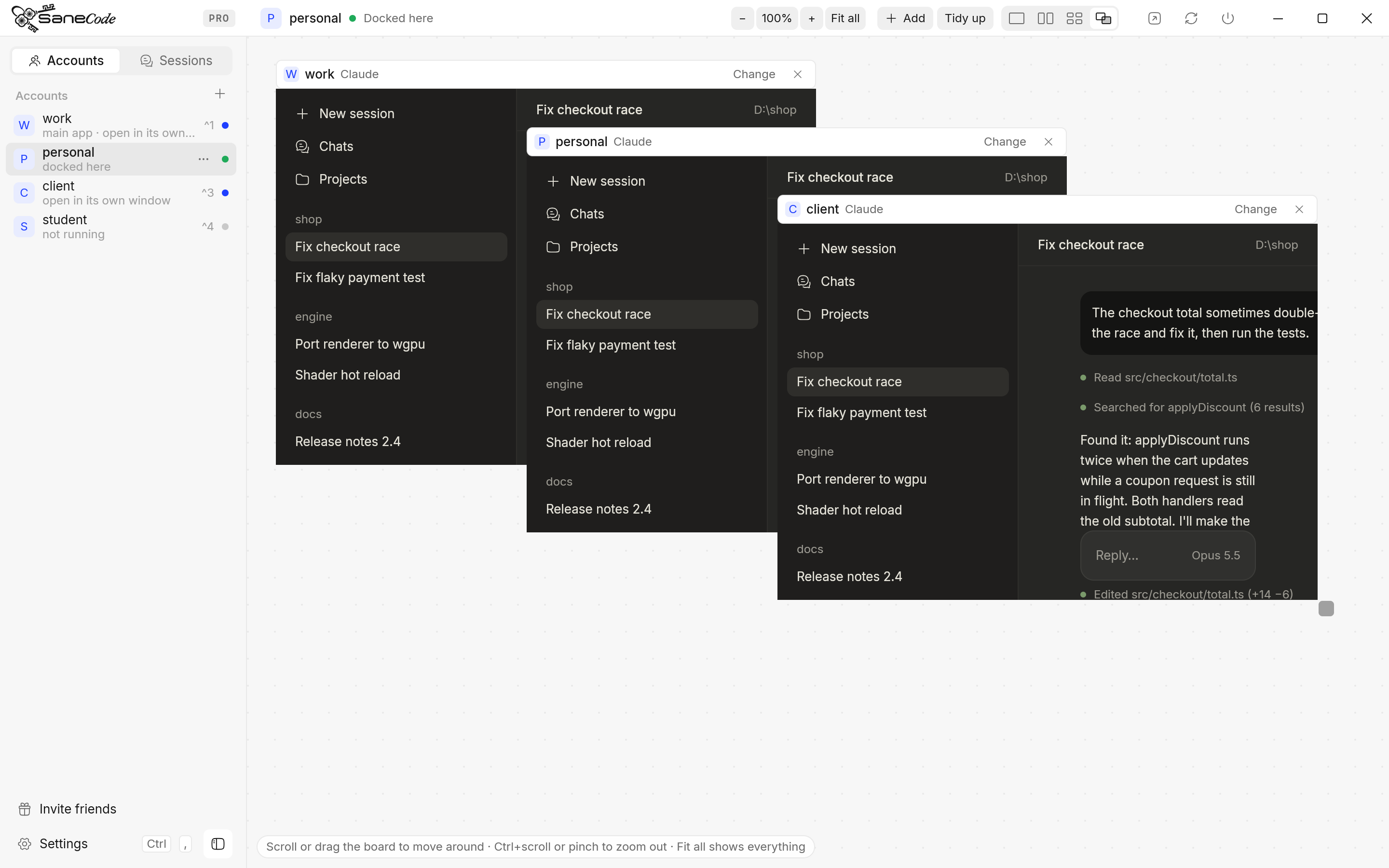
**Canvas is a board you arrange freely.** It's part of Pro.
| To | Do this |
| --- | --- |
| Move a window | Drag its header |
| Resize a window | Drag the small square at its bottom-right corner (the pointer turns into a diagonal resize arrow) |
| Move around the board | Scroll, or drag the dotted background |
| Zoom out to see everything | Ctrl+scroll or pinch on the board, **−** / **+** or **Fit all** in the title bar, or Ctrl+− / = |
| Zoom back in to one window | Click its picture while zoomed out, or **100%** (Ctrl+0) |
| Bring a window to the front | Click it, or drag its header |
| Add a Claude | **Add** in the title bar, or click an account in the sidebar |
| Arrange everything neatly | **Tidy up** in the title bar |
A window that hangs past the edge of the board is cut off at the edge, so it never covers
SaneCode's sidebar or title bar. At the bottom left, a short tip says how to move around.
### How does zooming out work?
At 100% every window on the canvas is the live Claude window. Zoom out and SaneCode first takes
a picture of each window, then shows the pictures, scaled down, with plenty of board around them:
drag a picture to move its window, drag its corner to resize it, and click it to zoom back in to
that window, live, at 100%. The pictures are taken each time you zoom out, so they show each
window as it was at that moment. **Tidy up** arranges everything into a grid and zooms so it all
fits.
## What are the limits?
- **Claude has a minimum window size** (about 612 × 406 points, 765 × 508 pixels at 125%
scaling). A pane smaller than that shows the Claude window at its minimum size, cut off at the
pane's edge, so it never covers a neighbour. On a 1080p screen, the bottom of each window in a
2×2 Grid is cut off a little; Split and Canvas don't have that problem.
- **Zoomed out, windows are pictures.** A live Claude window can't be drawn smaller, so below 100%
you see each window as it was when you zoomed out. Zoom in to one to use it.
- **Scrolling over a live Claude window scrolls Claude.** Scroll over the board, between windows,
to move the canvas.
- **Many windows, more work.** Moving the canvas moves every window on it. A few windows stay
smooth; with many open, panning does more work.
- **Settings, the tour and the Add account dialog** cover the content area: the panes step aside
while they're open and come back when they close.
## Is the layout remembered?
Yes. The layout, the split position, what's in each tile, and where every canvas window sits are
saved in SaneCode's settings (`%APPDATA%\SaneCode\settings.json`) and come back the next time
you open SaneCode. Panes remember windows by account and chat name, so they find them again after
a restart.
## What happens when an account quits or a chat closes?
- **Quit** (or **Pop out**) on an account takes its windows out of every layout.
- **Closing a popped-out chat** with Claude's own close button empties its pane.
- **Claude closed to the tray**: the pane shows that it isn't running; click the account in the
sidebar to open it again.
- **Closing SaneCode** gives every Claude window back to the desktop, as usual.