# Add Claude accounts and sign in (SaneCode docs)
> SaneCode is a Windows app that runs several Claude desktop accounts in one window. Each account is the official, unmodified Claude desktop app with its own data folder; SaneCode starts one per account and docks their windows beside its sidebar, so every account stays signed in. Free for 2 accounts; Pro ($29 once) for more. Not affiliated with Anthropic.
Page: https://sanecode.co/docs/add-claude-accounts-and-sign-in/
Markdown: https://sanecode.co/docs/add-claude-accounts-and-sign-in.md
## All SaneCode docs pages
- [Let Claude use SaneCode (MCP) and failover](https://sanecode.co/docs/let-claude-use-sanecode-mcp-failover/): SaneCode's own MCP server lets Claude see your accounts and their usage limits, carry a conversation on in another account when one runs out, schedule Continue after the reset, and report what happened while you were away. (Markdown: https://sanecode.co/docs/let-claude-use-sanecode-mcp-failover.md)
- [Use SaneCode from ChatGPT, Claude.ai and other AI apps](https://sanecode.co/docs/use-sanecode-from-chatgpt-claude-and-other-ai-apps/): Connect SaneCode's remote MCP server (mcp.sanecode.co) to ChatGPT, Claude.ai, Claude Code, Cursor, VS Code and other AI apps, so they can check your Claude accounts and move or schedule work on your PC. (Markdown: https://sanecode.co/docs/use-sanecode-from-chatgpt-claude-and-other-ai-apps.md)
- [Overview](https://sanecode.co/docs/): What SaneCode is and how it fits with Claude desktop. (Markdown: https://sanecode.co/docs/index.md)
- [How SaneCode works](https://sanecode.co/docs/how-sanecode-runs-multiple-claude-instances/): How SaneCode runs several Claude desktop accounts at once on Windows, where each account's data lives, what every account shares, what SaneCode changes on your PC, and how its settings connect. (Markdown: https://sanecode.co/docs/how-sanecode-runs-multiple-claude-instances.md)
- [Install and first run](https://sanecode.co/docs/install-sanecode-on-windows/): Install SaneCode and bring in the Claude you already use. (Markdown: https://sanecode.co/docs/install-sanecode-on-windows.md)
- [Add Claude accounts and sign in](https://sanecode.co/docs/add-claude-accounts-and-sign-in/): Add a second (or fifth) Claude account to SaneCode, sign in once with the built-in guide, and fix sign-ins that land in your other Claude. (Markdown: https://sanecode.co/docs/add-claude-accounts-and-sign-in.md)
- [Switching and windows](https://sanecode.co/docs/switch-claude-accounts-without-signing-out/): Shortcuts, popping out, chat tabs, and what happens when SaneCode closes. (Markdown: https://sanecode.co/docs/switch-claude-accounts-without-signing-out.md)
- [Layouts: Split, Grid and Canvas](https://sanecode.co/docs/claude-desktop-side-by-side-layouts/): See several Claude accounts or chats at once in SaneCode. Split and Grid are free, Canvas is Pro. Every control, what it does, and the limits. (Markdown: https://sanecode.co/docs/claude-desktop-side-by-side-layouts.md)
- [Continue a Claude conversation in another account after a usage limit](https://sanecode.co/docs/continue-claude-session-in-another-account/): When a Claude account hits its usage limit, move the Claude Code conversation to another of your accounts and keep going with the full context, no new chat, no re-explaining. (Markdown: https://sanecode.co/docs/continue-claude-session-in-another-account.md)
- [Continue after reset (Automations)](https://sanecode.co/docs/continue-claude-after-usage-limit-resets/): Send “Continue” or your own prompt to any Claude account's window, or to Codex, when its usage limit resets. Several at once, logged, without keeping the window in front. (Markdown: https://sanecode.co/docs/continue-claude-after-usage-limit-resets.md)
- [Shared MCP servers](https://sanecode.co/docs/share-mcp-servers-across-claude-accounts/): Set up an MCP server once in SaneCode and every Claude account gets it, instead of configuring it in each account. (Markdown: https://sanecode.co/docs/share-mcp-servers-across-claude-accounts.md)
- [Claude in Chrome for every account](https://sanecode.co/docs/claude-in-chrome-for-every-account/): Use Claude in Chrome from every Claude desktop account in one Chrome profile, without signing the extension out and in when you switch. (Markdown: https://sanecode.co/docs/claude-in-chrome-for-every-account.md)
- [Claude desktop and Claude Code themes](https://sanecode.co/docs/claude-desktop-and-claude-code-themes/): Change the theme of Claude desktop's Code tab in every account at once. SaneCode applies a Claude Code theme (colours and a background) with one setting, in light or dark mode, without modifying Claude. (Markdown: https://sanecode.co/docs/claude-desktop-and-claude-code-themes.md)
- [Claude Code plugins, skills, mods and MCP with several accounts](https://sanecode.co/docs/claude-code-plugins-and-skills-in-every-account/): Plugins and skills added in Claude desktop belong to one account; Claude Code's own .claude folder is one per PC. Which extensions every account shares, which stay per account, and how to set them up. (Markdown: https://sanecode.co/docs/claude-code-plugins-and-skills-in-every-account.md)
- [Settings](https://sanecode.co/docs/sanecode-settings/): Every setting and exactly what it changes. (Markdown: https://sanecode.co/docs/sanecode-settings.md)
- [Invite friends: $5 off Pro each](https://sanecode.co/docs/invite-friends-get-pro-discount/): Share your SaneCode referral link. Every friend who signs up and signs in from SaneCode takes $5 off your Pro, and gets $5 off theirs. Six friends make Pro free. (Markdown: https://sanecode.co/docs/invite-friends-get-pro-discount.md)
- [Claude updates and repair](https://sanecode.co/docs/claude-desktop-updates-and-repair/): What happens when Claude desktop updates, resets or is reinstalled. (Markdown: https://sanecode.co/docs/claude-desktop-updates-and-repair.md)
- [FAQ and troubleshooting](https://sanecode.co/docs/sanecode-faq-and-troubleshooting/): Common questions and fixes. (Markdown: https://sanecode.co/docs/sanecode-faq-and-troubleshooting.md)
## Questions people ask
- How do I add a second Claude account?
- How do I continue a Claude Code session in another account after a usage limit?
- How do I share my MCP servers with every Claude account?
- Does SaneCode change the Claude app or my sign-ins?
---
# Accounts
Each account in SaneCode is a complete [Claude desktop](https://claude.com/download) setup: its sign-in, settings, chats,
Code sessions and connectors. Accounts never share sign-ins, so a client org's connectors stay
with that client.
## Add an account
Press **+** next to *Accounts* (or **Add an account** on an empty screen). Free has 2 Claude
accounts; a third needs [Pro](https://sanecode.co/pro/). Accounts you already have always stay.
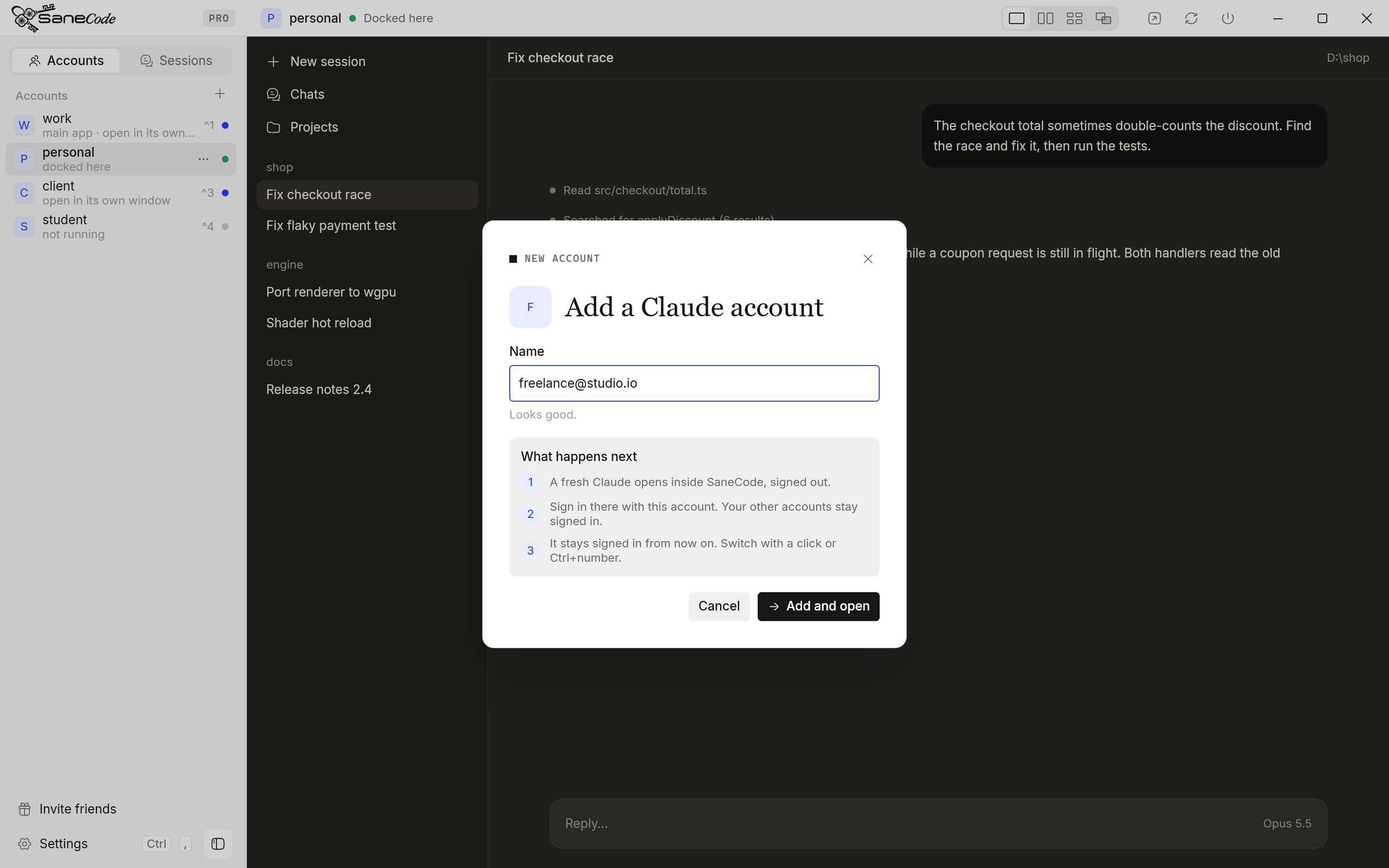
1. Type a name you'll recognize. An email works well: `client@northwind.dev`. Letters, digits and
`@ + . _ -` are allowed; the name also becomes the account's folder name.
2. Press **Add and open**. A fresh Claude opens inside SaneCode, signed out.
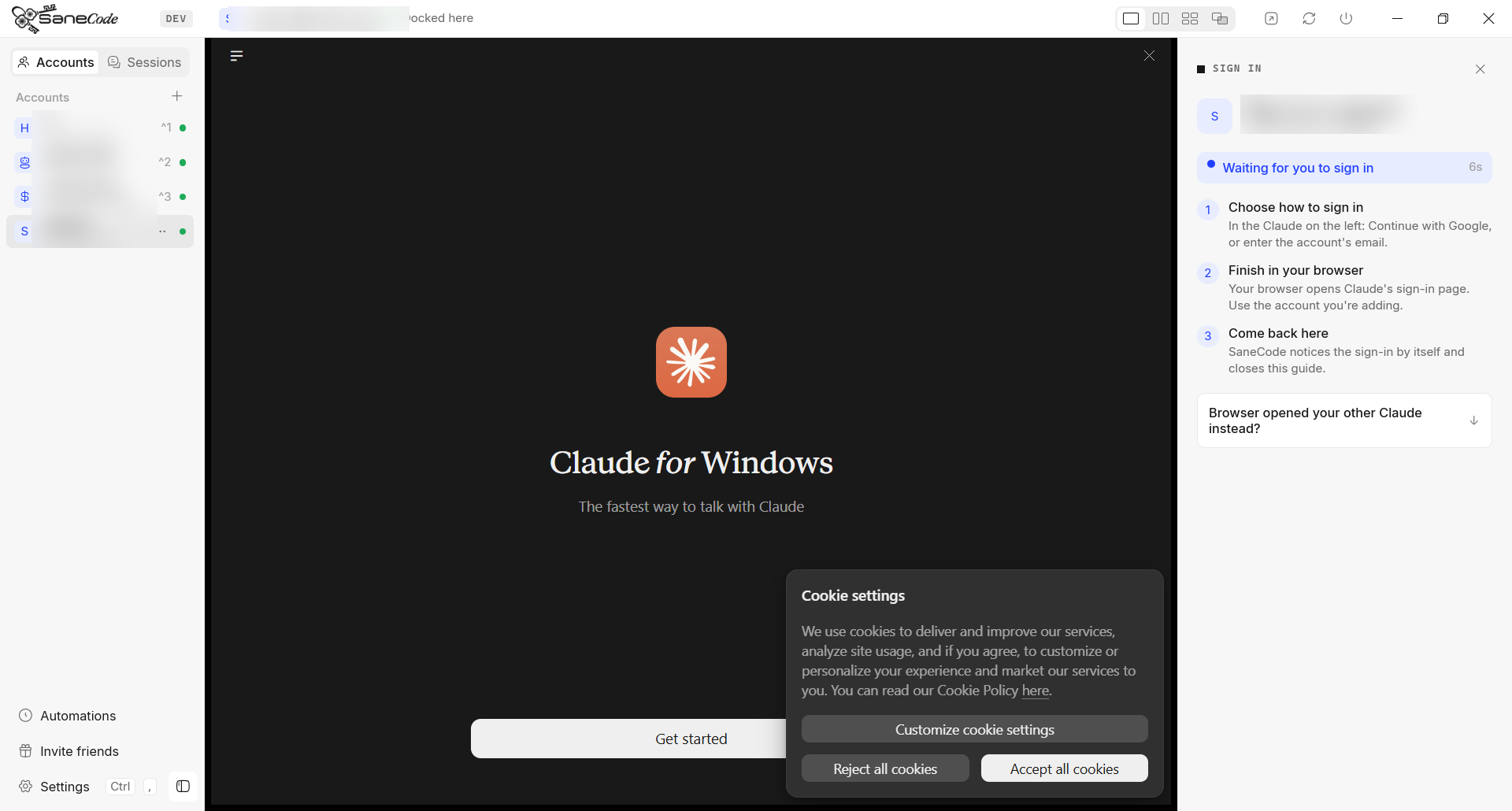
3. A **sign-in guide** opens beside the new Claude. Sign in in that Claude (Continue with Google,
or your email); your browser opens to finish. The guide waits, notices when you're signed in, and
closes by itself. From then on the account stays signed in.
### If the sign-in lands in your other Claude
Your browser ends the sign-in with an **Open Claude** button. Windows sends that link to the Claude
that was installed first, which may be your other account instead of the new one. SaneCode spots
the link and hands it to the account you're signing in, by itself. If the account still doesn't
sign in, the guide's **Browser opened your other Claude instead?** section walks you through doing
it by hand:
1. On the page with the **Open Claude** button, press F12 and click the **Console** tab.
2. Click **Open Claude** again. A line starting with *Launched external handler for 'claude://…'*
appears: select it and copy it.
3. Press **Paste claude:// link** in the guide. SaneCode hands the link to the new account.
You can reopen the guide any time: right-click the account → **Sign in…**.
### If a connector never finishes connecting
Connecting a connector (Notion, Google Drive, GitHub…) in Claude ends the same way: the browser
sends Claude a `claude://` link, and Windows hands it to the Claude that was installed first.
SaneCode passes it on to the account on show, so stay on the account you clicked **Connect** in
until it says connected. If it still stays on *You're not connected yet* with a spinner, hand it
the link yourself:
1. On the page that says **Open Claude** (after you allowed access), press F12 and click
the **Console** tab.
2. Click **Open Claude** again and copy the *Launched external handler for 'claude://…'* line.
3. In SaneCode, right-click the account you were connecting → **Paste claude:// link**.
## The status dot
| Dot | Means |
| --- | --- |
| Green | Docked in SaneCode |
| Blue | Running in its own window |
| Amber | Starting |
| Gray | Not running |
| Red | Not responding: its Claude is running but shows no window (usually after a crash). Click it, then **Restart Claude** |
## Right-click an account
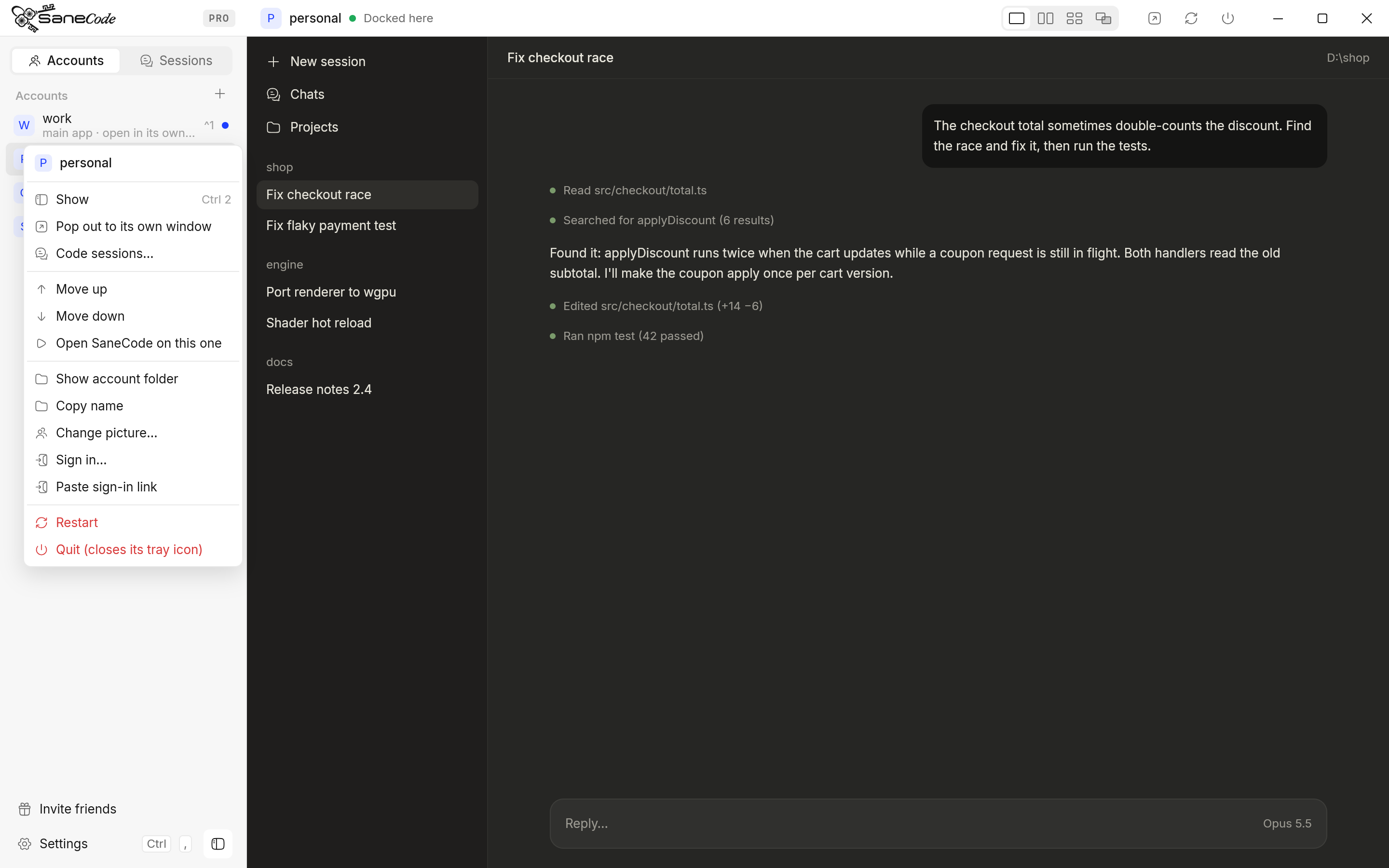
- **Show / Start here / Bring into SaneCode**: depending on its state.
- **Pop out to its own window**: it keeps running outside SaneCode; pick it again to bring it back.
- **Code sessions…**: its sessions, ready to continue elsewhere.
- **Move up / Move down**: the order also sets Ctrl+number.
- **Open SaneCode on this one**: the account shown when SaneCode starts.
- **Show account folder**, **Copy name**, **Sign in…**, **Paste claude:// link** (hands a sign-in or connector link that went to the wrong
Claude to this account).
- **Restart / Quit** that account's Claude.
## How does SaneCode run several Claude accounts at once?
Claude desktop is installed once. SaneCode starts that same official app **once per account**,
each copy with its own data folder, and docks every copy's window into its own. All of them run at
the same time; switching only changes which window you see. Nothing is signed out, closed or
swapped.
Each account's data lives in its own folder, `%LOCALAPPDATA%\Claude-Profiles\`. Because
Claude desktop (installed from claude.com or the [Microsoft Store](https://support.claude.com/en/articles/10065433-installing-claude-for-desktop), the same packaged app) only writes real files inside its own data folder,
`%LOCALAPPDATA%\Claude-Data`, SaneCode puts a link (a Windows [junction](https://learn.microsoft.com/en-us/windows/win32/fileio/hard-links-and-junctions)) there for each account
that points at its folder in `Claude-Profiles`:
| In `Claude-Data` | Points to |
| --- | --- |
| `claude_pzs8sxrjxfjjc` (Claude's own folder name) | your main account's folder, so Claude from the Start menu opens it |
| `acct-` | each other account's folder, which SaneCode starts that copy with |
The `README.txt` there is Claude's own. Don't delete or move these links while Claude runs; if a
Claude update resets them, SaneCode offers **Repair** ([updates](https://sanecode.co/docs/claude-desktop-updates-and-repair/)).
All accounts share the installed app and [Claude Code's settings](https://code.claude.com/docs/en/settings) in `%USERPROFILE%\.claude`
(plugins, [skills](https://code.claude.com/docs/en/skills), mods, [themes](https://sanecode.co/docs/claude-desktop-and-claude-code-themes/)); see [Plugins, skills and mods](https://sanecode.co/docs/claude-code-plugins-and-skills-in-every-account/).
Each account keeps its own sign-in, chats, Code sessions and settings.
## The main account
One account is the **main app**: the one that opens if you start Claude from the Start menu. It's
the Claude you brought in on first run (or your first account). The others run as extra copies.